How to Track an Order
Last updated: November 12, 2026
Once an order leaves our warehouse, its carrier and tracking number are on the order in your ShipHero portal. This guide shows you where to find them, what tracking usually looks like in the first few days, and what to do if it stalls or shows delivered when your customer doesn't have the package.
Who does what
You: look up tracking for your customers, keep an eye on packages that stall, and submit a carrier claim if one qualifies.
Manifest: creates the label, hands the package to the carrier, and files carrier claims you submit.
Your Account Manager: helps with tracking questions you can't answer from the order or the carrier's page.
When to use this guide
A customer asks where their order is.
You want to check that an order shipped and see the carrier and service it went on.
Tracking hasn't updated for a while.
When not to use this guide
Situation | Use instead |
|---|---|
The order hasn't shipped yet | |
The package is lost, damaged or delivered but missing | |
Your customer received the wrong item or quantity | Mis-Shipments & Chargebacks: How to Report and What to Expect |
Tracking shows as "Other" in Shopify |
Before you start
Have the order number, or your customer's first or last name.
1. Find the order
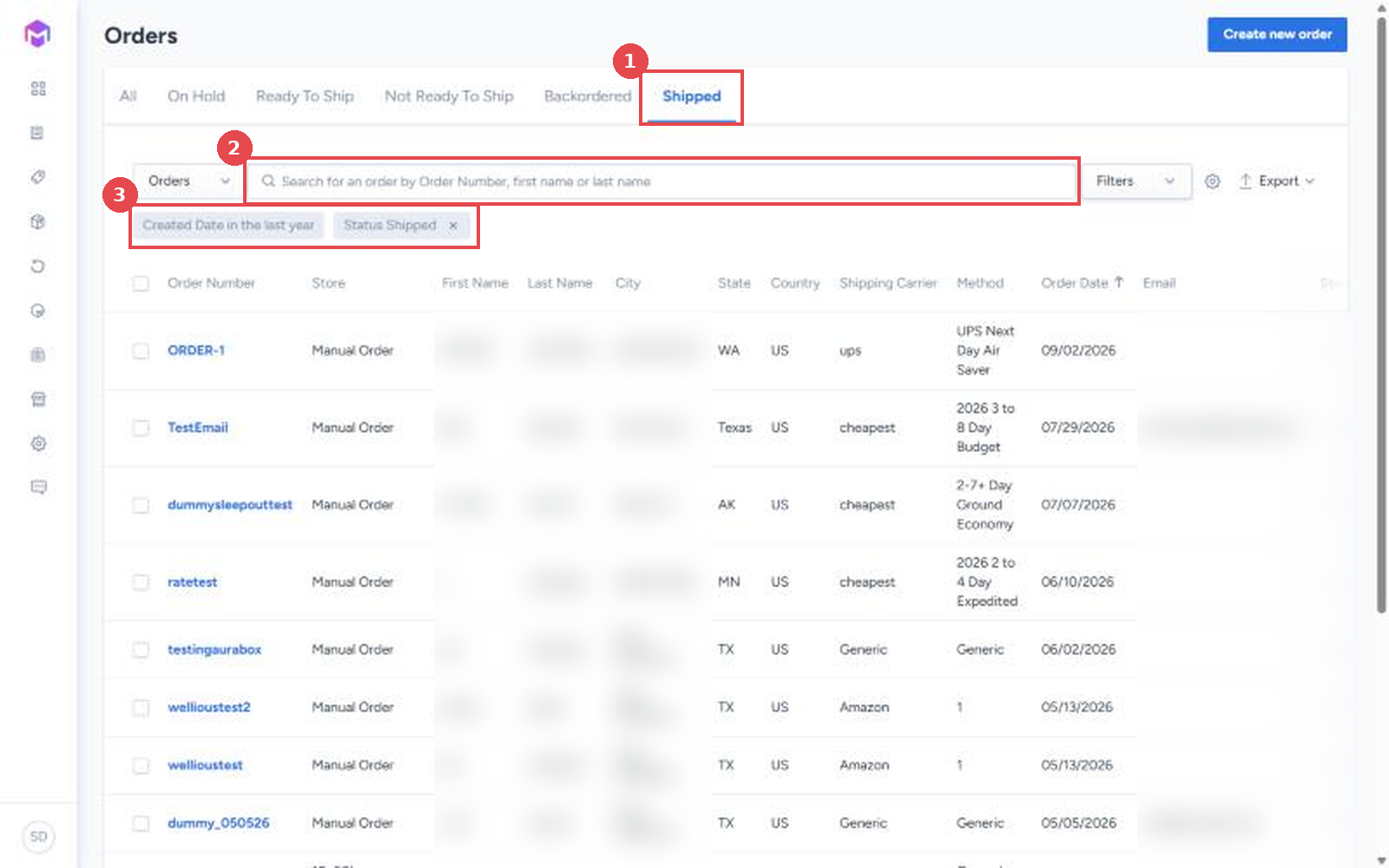
Log in to your ShipHero portal at shipsfor.us, click Orders in the left-hand menu, then click Orders again in the menu that opens.
Click the Shipped tab (1).
Search by order number or your customer's first or last name (2).
If the order doesn't appear, click Filters, change Created Date to a wider range such as in the last month, and click Apply (3). The list shows only the last week by default.
2. Open the tracking
Click the order number to open it.
At the top of the order, the Shipments section lists each package with its carrier and Tracking link (1).
Click the tracking link to open the carrier's tracking page.
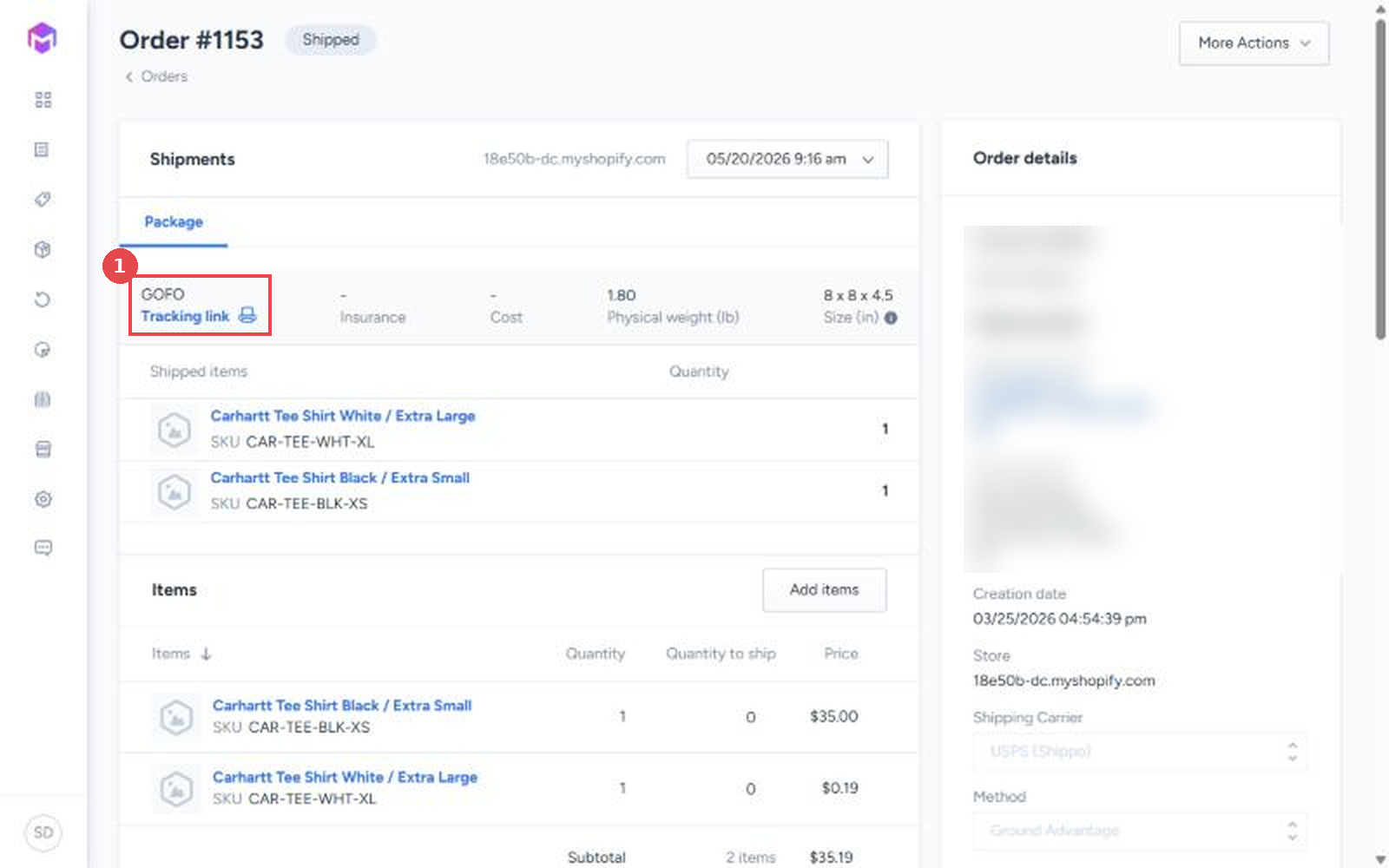
If the order shipped in more than one package, each package has its own carrier and tracking link. Check them all before telling your customer something's missing.
3. Read what tracking is telling you
What you see | What it usually means | What to do |
|---|---|---|
Label created, no scans yet, within 1 to 2 business days of shipping | Normal. Carriers don't always scan packages at pickup from our warehouse, so the first scan often appears at the carrier's sort facility. It can take a little longer in busy periods | Wait |
No scan after label created, beyond the first few business days | The package may not have reached the carrier | Check eligibility for a No First Scan claim |
No new tracking event for 15 days or more, and not delivered | The package may be lost in transit | Check eligibility for a Lost in Transit claim |
Delivered, but your customer doesn't have it | It may have been left somewhere nearby, or scanned before it arrived | Ask your customer to check with neighbors and mailrooms and wait a few days, then check eligibility for a Delivered Not Received claim |
Claims must be submitted within 30 days of the ship date, and eligibility depends on the carrier and service. See Carrier Shipping Claims & How to Submit a Claim.
If tracking isn't showing correctly in Shopify
Orders shipped with regional carriers such as UniUni, ShipX or Veho can show as "Other" tracking in Shopify. The tracking link on the order in your ShipHero portal still works. See Why Some Orders Show "Other Tracking" in Shopify.
Verify
The order shows Shipped at the top of the order page.
The carrier's tracking page shows the same tracking number as the order's Shipments section.
Things to avoid
Don't worry about missing scans in the first 1 to 2 business days. It's normal for the first scan to appear at the carrier's facility.
Don't wait past 30 days from shipping to act on a stalled package. Claims can't be submitted after that.
Don't check only the first package on a multi-package order. Each package has its own tracking.