Product Page Terms & Inventory Levels
Last updated: October 21, 2026
The Products page in your ShipHero portal at shipsfor.us shows your catalog and the current stock level for every SKU. This article explains each tab, column and field so you can keep an eye on inventory and catch problems before they affect orders.
Open the Products page
Log in to shipsfor.us and click Products in the left-hand menu.
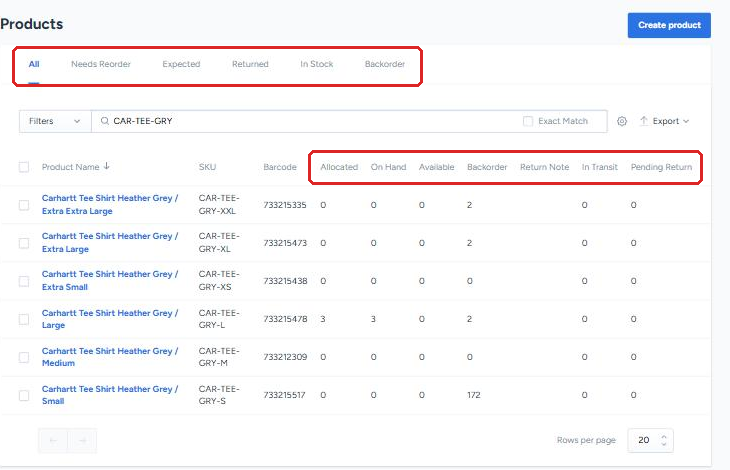
Tabs
The tabs at the top filter your catalog.
All: every SKU imported from your connected store, plus any products created manually.
Needs Reorder: SKUs at or below their reorder level.
Expected: SKUs on a shipping plan that hasn’t arrived at Manifest’s warehouse yet.
Returned: SKUs that have been returned to Manifest’s warehouse.
In Stock: SKUs with stock at Manifest’s warehouse.
Backorder: SKUs with at least one unit on backorder. A SKU can appear here even if it has stock On Hand. See How to View Out of Stock SKUs and # of Backordered Units.
Columns
Product Name: the product’s name, as it comes from your store.
SKU: the unique code that identifies the product and matches it between ShipHero and your store. If a product has no SKU, ShipHero creates one from your sales channel’s product ID.
Barcode: the value printed on the physical product, which our team scans when receiving and packing. If a product has no barcode, ShipHero creates one from your sales channel’s product ID.
Allocated: units assigned to open orders. They’re no longer available to sell.
On Hand: units physically in Manifest’s warehouse.
Available: units you can still sell. This is the number sent to your store as sellable inventory, and it’s On Hand minus Allocated. If Sell Ahead units have been set up for a preorder, they’re added to Available too.
Backorder: units on open orders that don’t have stock to fill them, meaning sold but not yet able to ship.
Return Note: not used at Manifest. Returns are processed in Two Boxes, so leave this blank.
In Transit: units on a shipping plan that are on their way to the warehouse.
Pending Return: units on open returns that haven’t arrived back at the warehouse yet.
Use the gear icon next to the search bar to show or hide columns.
The product page
Click any product name to open its page.
Inventory summary. The boxes at the top show the SKU’s totals for On Hand, Allocated, Available, Backorder, In Transit and Expired. Expired counts units past their expiration date, for lot-tracked products.
Warehouses tab. This breaks the totals down by warehouse location, along with each location’s Reorder Level, Customs Value and Reserve. If a SKU shows backorders even though it has stock On Hand, check this breakdown first. The backordered units may sit under a different warehouse row.
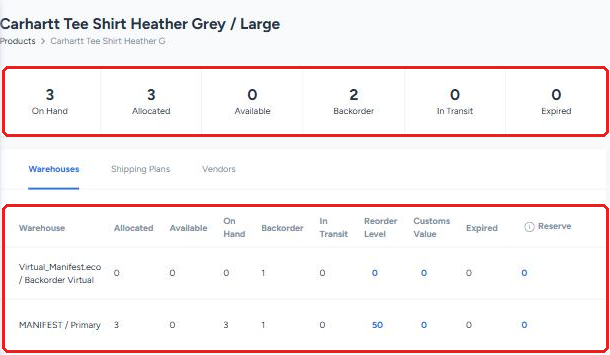
The page also has tabs for the SKU’s Shipping Plans, Vendors, Orders and Returns, so you can see which orders are waiting on it.
Product details. On the right side of the page:
Name, SKU and Barcode come from your store and can’t be edited here. Change them in your store, and see How to Add a New Product.
Product flags: Is Hazmat, Dropship only, No Returns, Needs Serial Number and Hide from packing slip change how the warehouse handles the item. Talk to your Account Manager before changing one.
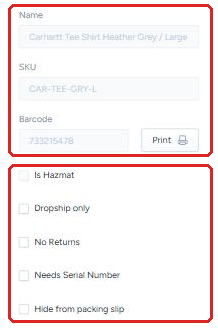
Return handling instructions aren’t set here. Manifest processes returns through Two Boxes, so speak to your Account Manager about how returns should be handled for a SKU.
Kits and bundles
A kit or bundle doesn’t hold its own On Hand inventory. Its stock comes from its component SKUs, and orders for a kit allocate the components. Watch the components’ inventory to know how many kits you can sell. See How to Create Bundles (Kits).