Sell Ahead Inventory (Preorders)
Last updated: October 30, 2026
Sell Ahead lets you start selling units on your Shopify store before they arrive at Manifest's warehouse. You set a Sell Ahead quantity on a purchase order (PO) in ShipHero, and ShipHero adds those units to your Available inventory and publishes them to Shopify. Customers can order the item right away. Those orders wait on backorder until the PO is received, then ship as normal.
Sell Ahead is set in ShipHero at app.shiphero.com. It isn't available in the shipsfor.us portal. If you don't have an app.shiphero.com login, send your Account Manager the PO number, the SKUs and the Sell Ahead quantity for each, and we'll set it for you.
Tip: Sell Ahead only changes the quantity your store shows. It doesn't tell your customers the item is a preorder, so label the product as a preorder on your storefront and set expectations on when it ships.
Before you start
Inventory sync is on for your store, so ShipHero publishes your Available quantity to Shopify. Without it, Sell Ahead units won't reach your store. See ShipsFor.Us: Shopify Inventory Sync.
A PO exists for the incoming stock, with the SKUs and quantities you're expecting. A Shipping Plan created in shipsfor.us is a PO. See How to Create an Inbound PO (Shipping Plan) in ShipHero.
The Expected date is set on the PO, so you know roughly when preorders will ship.
How Sell Ahead affects your Available inventory
The quantity published to your sales channels is calculated as:
On Hand − Allocated − Backorder + Sell Ahead − Reserved = Published Available
For example, if a SKU has 40 On Hand, 10 Allocated, 0 Backorder, 0 Reserved and a Sell Ahead of 50, your store shows 80 available. The first 30 orders ship from stock on hand, and the next 50 go on backorder until the PO arrives.
A few rules ShipHero applies:
Sell Ahead can't be more than the quantity ordered on that PO line.
Sell Ahead only counts while the PO is Pending, Receiving or Arrived. Once the PO is closed, its Sell Ahead stops being added to Available.
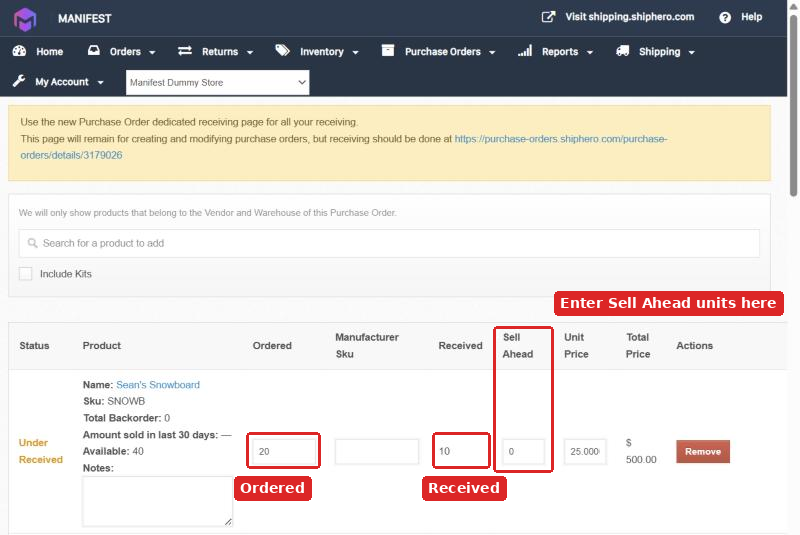
Sell Ahead goes down as units are received. If a line has a Sell Ahead of 20 and 5 units are received, Sell Ahead drops to 15, so the same units aren't counted twice.
See Reserve Inventory and Product Page Terms & Inventory Levels for more on each of these fields.
Set Sell Ahead on a PO
Open the PO. Log in to app.shiphero.com, go to Purchase Orders, find the PO for the incoming stock and click View.
Enter the Sell Ahead quantity. In the line items, enter the number of units you want to presell in the Sell Ahead field for each SKU. Leave it at 0 for any SKU you don't want to presell.
Save. Scroll down and click Save Changes. The Sell Ahead units are added to Available and pushed to Shopify on the next inventory sync.
Check your store. Open the product in Shopify and confirm the available quantity at the Manifest location went up by the Sell Ahead amount.
Check which SKUs have Sell Ahead
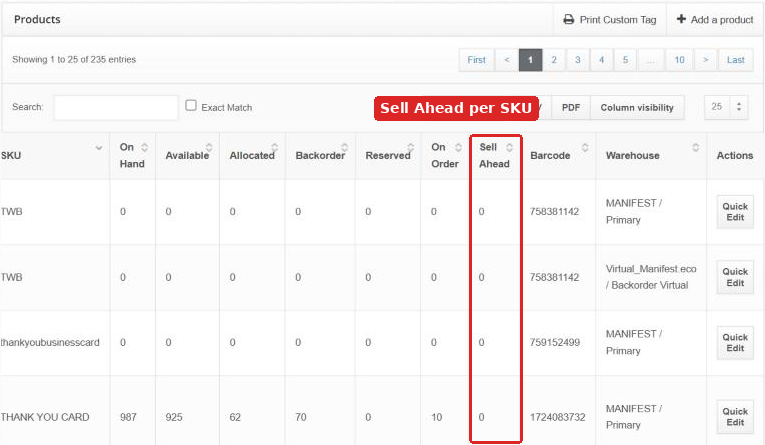
On app.shiphero.com, go to Inventory > Products. The Sell Ahead column shows each SKU's active Sell Ahead quantity.
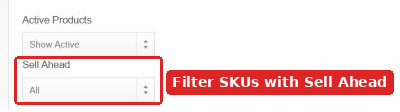
To see only SKUs with an active Sell Ahead, use the Sell Ahead filter at the top of the page and choose Show Products w/ Sell Ahead. This is the quickest way to review your preorders or clean them up.
What happens to preorders
Orders first use any stock you already have on hand.
Once on-hand stock is used, orders go on Backorder. See How to View Out of Stock SKUs and # of Backordered Units.
When the PO is received and put away, backordered orders allocate automatically and ship within our standard fulfillment timelines. There's nothing you need to do to release them.
If your supplier ships short
When a PO is only partly received, ShipHero keeps adding the Sell Ahead quantity to Available, because it still expects the rest of the units to arrive.
For example, a PO is for 20 units of a SKU with a Sell Ahead of 10. Only 10 units arrive and are received. ShipHero keeps Sell Ahead active because it still expects the other 10.
If the rest isn't coming, update the PO right away so you stop selling units you won't receive:
Open the PO on app.shiphero.com.
Lower Sell Ahead to the number of units you still expect, or to 0 if nothing more is coming.
Click Save Changes.
If nothing more is coming on that PO at all, you can also ask your Account Manager to close it, which stops its Sell Ahead from counting.
If you've already oversold, some orders will stay on backorder with no stock coming to fill them. Reach out to your Account Manager so we can help you decide whether to cancel, substitute or wait for a new PO.
Things to avoid
Don't set Sell Ahead higher than what's coming. You'll sell units that won't arrive.
Don't forget to lower Sell Ahead after a short shipment. ShipHero keeps publishing the extra units until you change it or the PO is closed.
Don't adjust inventory in Shopify by hand. ShipHero manages your inventory at the Manifest location and will overwrite any change made in Shopify.
Don't use Sell Ahead on a PO without an Expected date. You and your customers won't know when preorders will ship.