ShipsFor.Us- Shopify Inventory Sync
Last updated: July 24, 2026
This guide covers how to manage inventory sync in the ShipsFor.Us Portal.
How to turn off inventory sync
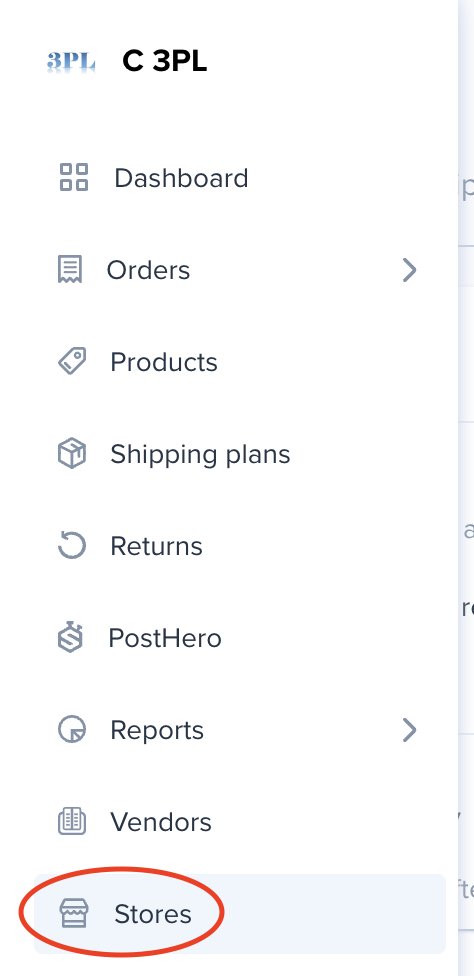
- Log in and go to Stores
Log in to the Portal and click Stores in the left-hand navigation menu. - Open store settings
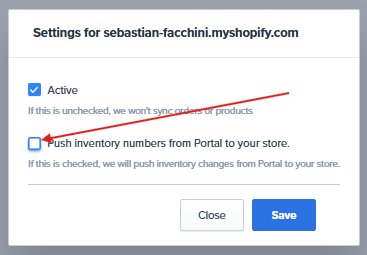
Click the 3-dot menu ( ⋯ ) next to the store name you want to update, then select Settings. - Uncheck inventory sync, then save
Deselect Push inventory numbers from Portal to your store, then click Save. Inventory will no longer be pushed from the Portal to your store.

To re-enable inventory sync
Follow the same steps above and re-check Push inventory numbers from Portal to your store, then click Save.
Once re-enabled, you will need to request an initial inventory push to ensure your store's stock figures are fully synced. Email ShipHero Support at support@shiphero.com with the subject line Initial Inventory Push Request and the following message:
Hi ShipHero Support,
I have turned inventory sync back on for [your myshopify URL]. Could you please complete an initial push of inventory figures so that everything is synced up?
Thank you!