How to Submit a Work Order
Last updated: July 22, 2026
Work orders are how you request assembly or kitting jobs from Manifest - things like bundling products together, adding inserts, or building a kit from component SKUs. This guide walks you through creating a work order in the shipsfor.us portal.
Before you start
Make sure the following are in place before submitting:
Your kit SKU has already been set up in ShipHero by your Manifest team. If you're unsure, reach out via Pylon before submitting.
Component inventory is either already at the warehouse or on an inbound shipment that will arrive before the requested completion date.
You know the quantity you need assembled.
Step 1 - Navigate to Work Orders
From the left navigation, click Work Orders, then click Create work order in the top right corner.
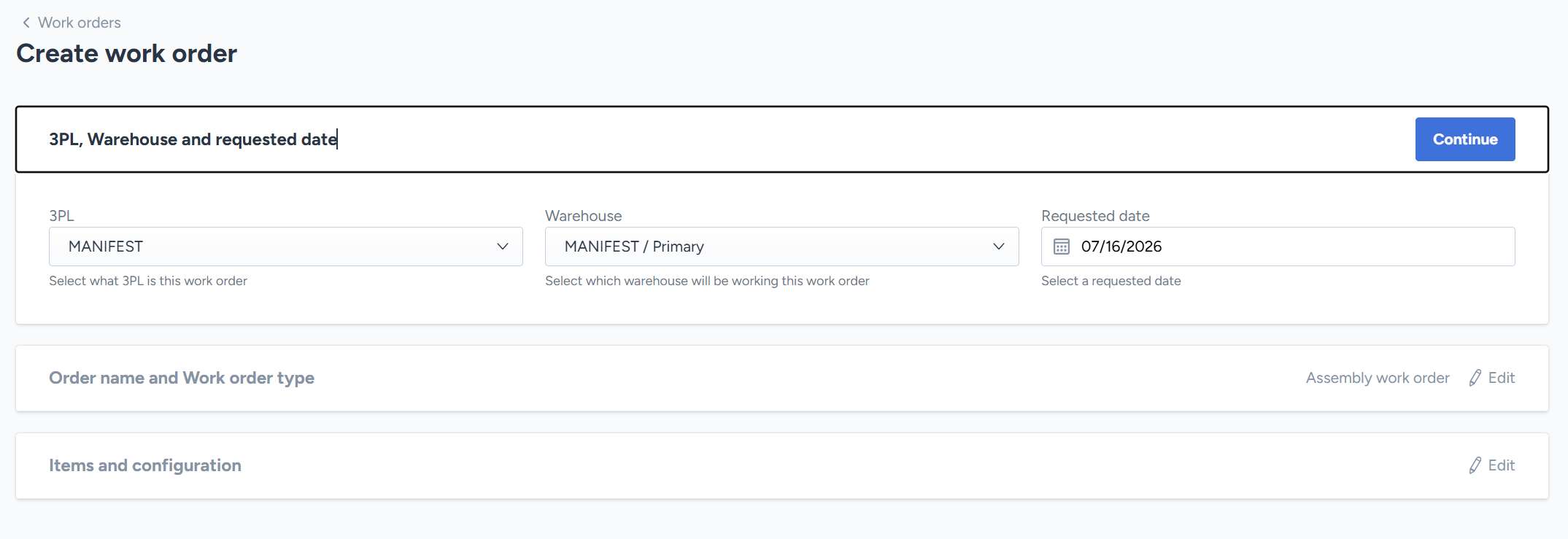
Step 2 - Fill in the top fields
Set the 3PL, Warehouse, and Requested completion date. The 3PL and warehouse should default to Manifest - if they don't, select them from the dropdowns.
The completion date tells us when you need the assembled units ready. Give as much lead time as possible, especially for large quantities.
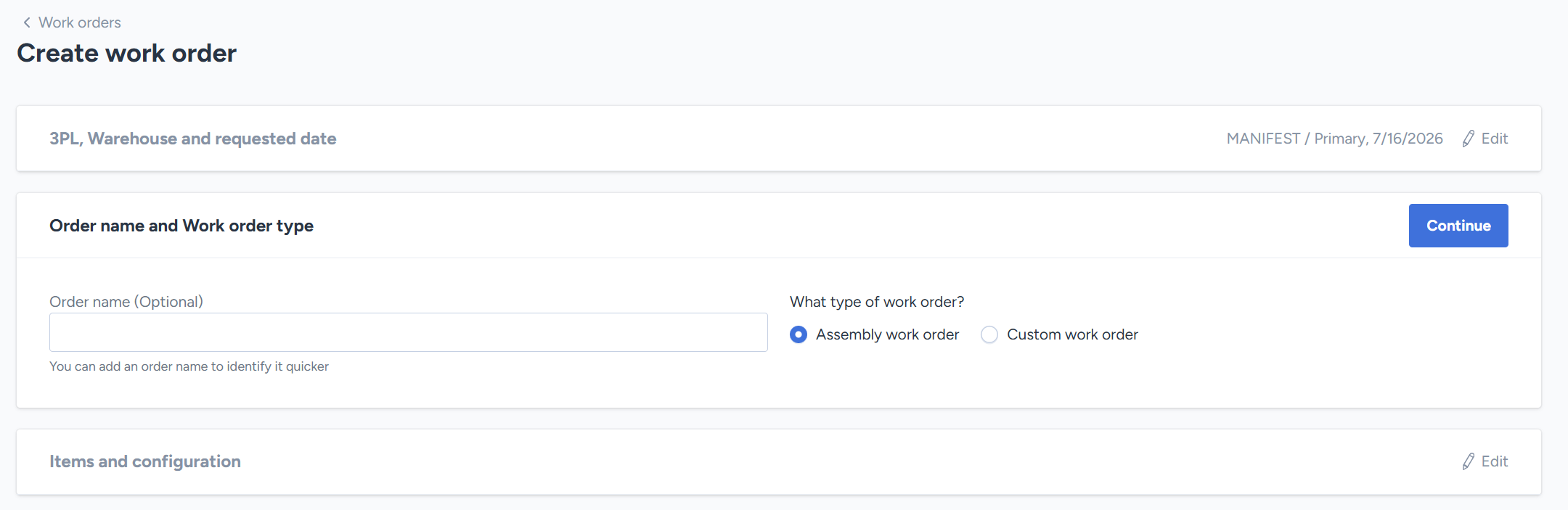
Step 3 - Name the order and select the type
Enter an Order name - something that identifies the job (e.g., "Summer Bundle - July Run"). Then set the Work order type to Assembly.
Step 4 - Search for your kit SKU
In the items section, click Select kits to search for the kit you want assembled.
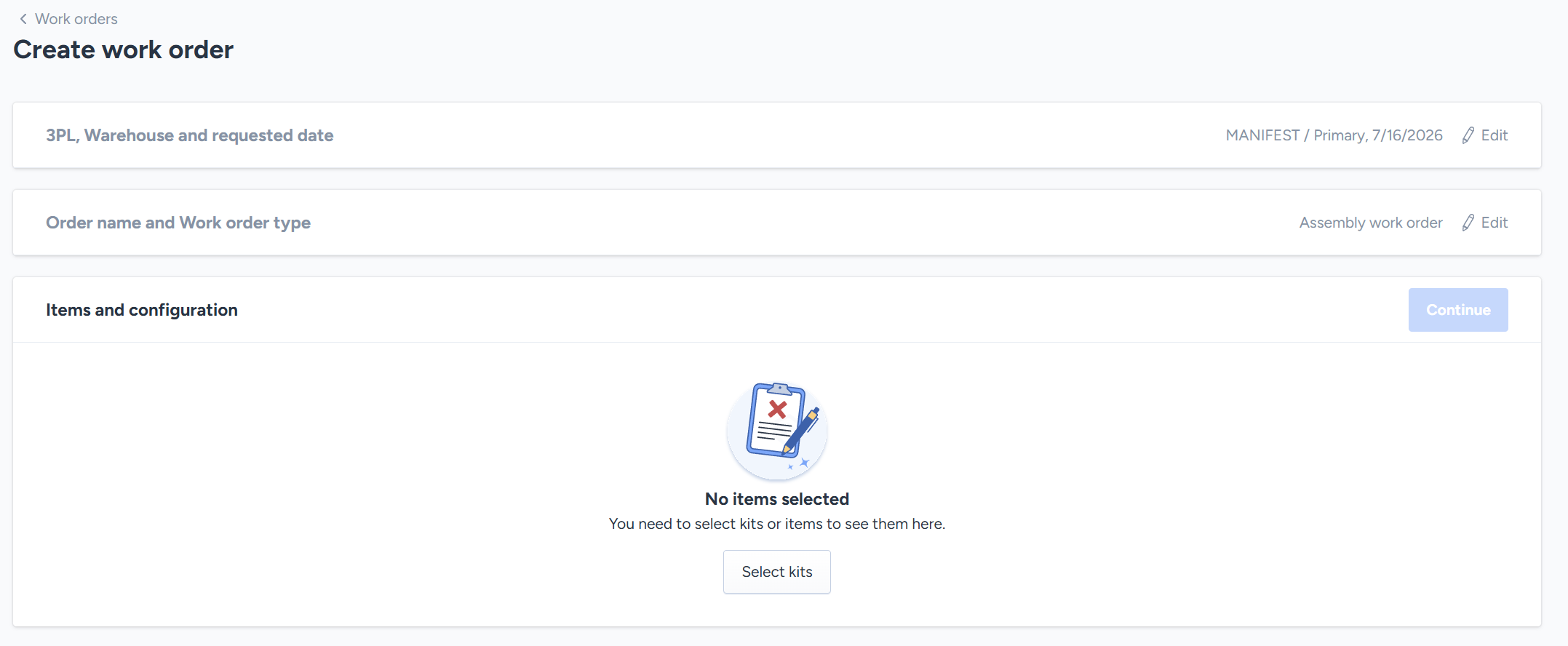

Type your kit SKU or product name into the search field and select it from the results.
Step 5 - Set the quantity and review components
After selecting your kit, enter the quantity you need assembled. ShipHero will display the component SKUs that make up the kit so you can confirm everything looks correct.

Review the components carefully. If anything looks off - wrong SKU, missing component - stop and contact your account manager before submitting.
Step 6 - Submit the work order
Once everything looks correct, click Create work order to submit.
Your Manifest team will receive the request and follow up if there are any questions. You can track the status of the work order from the Work Orders list page.
Need help?
If you run into any issues or need a kit SKU set up before you can submit, reach out to your account manager via Pylon and we'll get it sorted.