Shopify Locations
Last updated: November 13, 2026
Shopify Locations are the places your store keeps or fulfills inventory, such as a warehouse, a retail store, a pop-up or a dropshipper. Each location has its own inventory count. When Manifest fulfills for you, your store has a Manifest Texas location for our warehouse, and ShipHero keeps that location's stock in line with what we hold. This guide covers how to check which locations ShipHero updates, how to set each one, and what to do when you add a location or move fulfillment to us.
Locations matter in two ways:
Inventory sync. ShipHero updates stock in Shopify only for the locations it's set to update. Set up correctly, that's only Manifest Texas.
Order routing. Shopify assigns each order to a location, and that decides which orders reach us. The Push Inventory From setting in this guide controls inventory only, not which orders we receive. See Order Routing Between Shopify and ShipHero.
Who does what
You: create and manage locations in Shopify, tell your Account Manager before adding or removing one, and clear stock from any location you no longer ship from.
Manifest: sets Push Inventory From on each location during onboarding and keeps inventory sync running for Manifest Texas.
Your Account Manager: reviews new locations, updates their settings for you, and checks your order routing.
You can change Push Inventory From yourself in your ShipHero portal, but most merchants ask their Account Manager to do it, so we can check your order routing at the same time.
When to use this guide
You're checking which Shopify locations ShipHero updates.
You've added a new location, such as a retail store, a pop-up or another fulfillment partner.
Stock counts at one of your other locations keep changing on their own.
You're moving your fulfillment to Manifest from your own location or another 3PL.
When not to use this guide
Situation | Use instead |
|---|---|
You haven't created the Manifest Texas location yet | |
Orders aren't reaching us, or are going to the wrong location | |
Inventory isn't updating in Shopify at all |
Before you start
The Manifest Texas location exists in your Shopify store. ShipHero can't create Shopify locations; they have to be created in Shopify first.
You know which of your locations Manifest fulfills from, and which belong to you or other partners.
1. Open the Locations tab
Log in to your ShipHero portal at shipsfor.us.
Go to My Account > Stores.
Click Settings next to your Shopify store.
Open the Locations tab.
The tab lists every Shopify location on your store, one per row:
Column | What it shows |
|---|---|
Location ID, Location, Address | Pulled from Shopify. Click Sync Locations From Shopify to refresh them, for example after you add a location |
Push Inventory From | Which ShipHero warehouse, if any, updates stock at that location |
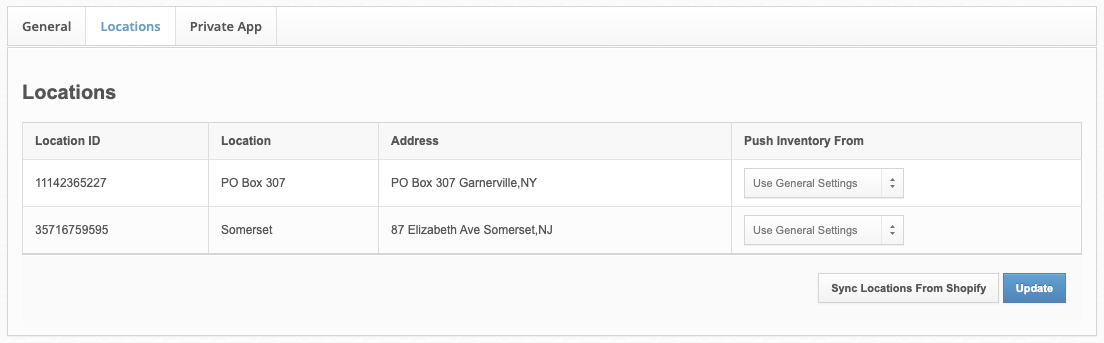
2. Set Push Inventory From on each location
Each location has its own setting:
Option | What it does | Use it for |
|---|---|---|
Push from specific warehouses | Only the warehouses you pick update this location. Hold Ctrl (Windows) or Cmd (Mac) to pick more than one | Manifest Texas |
Do Not Push Inventory | ShipHero never updates stock at this location | Every location Manifest doesn't fulfill from: retail, POS, pop-ups and other partners |
Use General Settings | Uses the warehouses on the General tab, and can combine several into one location | Not recommended. It's the default, so check any location still set to it |
Manifest's recommended setup:
Shopify location | Push Inventory From |
|---|---|
Manifest Texas | Push from specific warehouses, with Manifest.eco / Primary selected |
Every other location | Do Not Push Inventory |
This keeps inventory sync on Manifest Texas only, so ShipHero never overwrites your stock counts anywhere else.
3. When you add a new location
New locations show up on the Locations tab after Sync Locations From Shopify, set to Use General Settings by default. Left that way, ShipHero can push your Manifest stock to a location we don't ship from.
Create the location in Shopify.
Tell your Account Manager about it, including whether Manifest will fulfill from it.
Ask your Account Manager to set it to Do Not Push Inventory, unless Manifest fulfills from it, and to check your order routing. You can also change the setting yourself on the Locations tab.
4. When you move your fulfillment to Manifest
If you shipped orders yourself or used another 3PL before Manifest, your old Shopify location still holds that stock. Once inventory sync is on, Shopify counts both locations, so the same units can be listed twice and your store can oversell.
Before go-live, do one of these for your old location in Shopify:
set its inventory to zero, or
turn off Fulfill online orders from this location.
We'll confirm this with you before turning on inventory sync.
Verify
On the Locations tab, Manifest Texas is set to Manifest.eco / Primary, and every other location is set to Do Not Push Inventory.
In Shopify, stock at your other locations doesn't change when Manifest receives or ships inventory.
Products don't show stock at an old location you've stopped shipping from.
Things to avoid
Don't leave a location on Use General Settings. It's the default for new locations and can push Manifest stock where it doesn't belong.
Don't add or remove a location without telling your Account Manager. It can affect both inventory sync and which orders reach us.
Don't go live with stock still sitting at your old location. Shopify counts it alongside ours and your store can oversell.
Don't rename or delete Manifest Texas. Inventory sync and order routing are set up against it.
Don't use Push Inventory From to control which orders we ship. It only controls inventory. Order routing is set in Shopify.