Shopify Flows vs ShipHero: Promo and Free SKU Automation
Last updated: November 13, 2026
If you want a free or promotional item added to orders automatically, such as a gift with purchase or a free sample over a certain order value, set it up with Shopify Flow in your Shopify store rather than asking us for a ShipHero automation rule. This guide explains why, what to set up in Shopify, and what to check so the free item ships with the order.
Why we recommend Shopify Flow
It checks your stock first. A flow can check that the promotional item is in stock before adding it, and skip it if not. ShipHero automation rules can't see your Shopify inventory, so they add the item even when there's none to ship, and the order can end up on backorder.
Cancellations stay clean. A ShipHero rule adds the item only in ShipHero, so if the order is cancelled in Shopify, the extra item can stay on the order in ShipHero. A flow adds the item to the Shopify order itself, so a cancellation covers it too.
It can react to more about the order. A flow can use order value, discount codes, customer tags, products in the cart and more. ShipHero rules can only see what's on the order once it imports.
You stay in control. Your promotion lives in your own Shopify store, where you can see it, change it and turn it off. A ShipHero rule can only be changed by your Account Manager.
It's quick to build. Flow can draft a workflow from a plain-language description of what you want.
Who does what
You: build, test and turn the flow on and off in Shopify, and make sure the promotional item is stocked at our warehouse.
Manifest: picks and packs the free item with the order once it's on the order in ShipHero.
Your Account Manager: answers questions about inventory or orders, and advises if you're not on Shopify.
When to use this guide
You're running a gift with purchase, free sample or other promotion that adds an item to orders.
You want a free item added only when a condition is met, such as an order over a set value or a specific discount code.
You're asking us to set up a ShipHero automation rule to add an item to orders.
When not to use this guide
Situation | Use instead |
|---|---|
You want a card, sticker or other insert in every order, or in branded packaging | |
You want to add an item to one order by hand | |
You're preparing for a sale or launch that will spike order volume |
Before you start
The promotional item exists as a product in Shopify, with a SKU and barcode.
You know how the item will be added at no charge. Shopify Flow's Add order line item action adds an item at its listed price, so your customer is charged for it unless your setup prevents that.
The item is assigned to your Manifest location in Shopify. See Shopify Locations.
You've sent the item to our warehouse under that SKU, and it shows as available in your ShipHero portal. Allow time for it to be received before the promotion starts.
You have the Shopify Flow app installed and permission to create workflows in your Shopify admin.
1. Plan the promotion
Decide:
Which item is added, and how many.
When it's added: every order, orders over a set value, orders with a specific discount code or product, or customers with a specific tag.
When it starts and ends.
What happens when it runs out. In most cases the flow should skip the item once stock runs out, rather than add it and hold the order.
2. Build the flow in Shopify
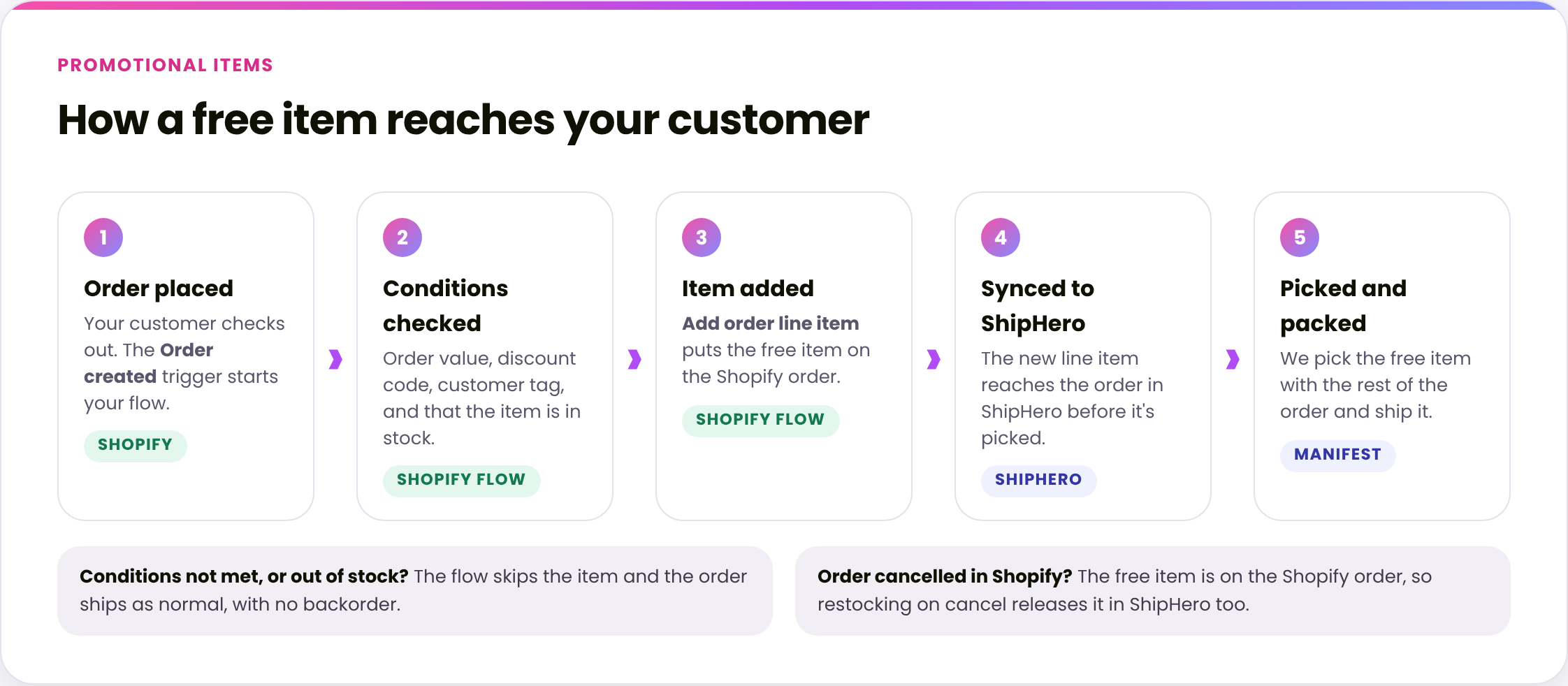
In your Shopify admin, open the Shopify Flow app and create a new workflow.
Start it with the Order created trigger.
Add a condition for when the promotion applies, such as order total, discount code or customer tag.
Add a condition that checks the promotional item is in stock.
Add the Add order line item action with the promotional item's variant.
Turn the workflow on.
Flow adds the item to the order seconds after it's placed, so it isn't on your customer's order confirmation email. It does show on the order in your Shopify admin.
3. Check it reaches ShipHero
Line items added in Shopify before an order is picked sync to ShipHero. See What Happens When I Edit an Order in My Shopify?
Place a test order that meets your promotion's conditions.
In Shopify, check the free item is on the order at no charge.
In your ShipHero portal at shipsfor.us, open the order and check the free item is listed under Items.
Cancel the test order in Shopify, and choose to restock the items so the cancellation syncs to ShipHero. See How to Cancel an Order.
Verify
Orders that meet the promotion's conditions show the free item in both Shopify and ShipHero.
Orders that don't meet them don't get the item.
Once the promotional item is out of stock, new orders ship without it rather than going on backorder.
Things to avoid
Don't ask for a ShipHero automation rule to add promotional items. It can't check your stock and doesn't follow Shopify cancellations.
Don't start a promotion before the item is stocked at our warehouse. Orders with an item we don't have go on backorder.
Don't add the item with an order tag and a ShipHero rule. Tags added after an order imports to ShipHero don't trigger automation rules.
Don't assume Flow adds the item for free. The Add order line item action adds it at its listed price, so check a test order before you go live.
Don't forget to turn the flow off when the promotion ends. It keeps adding the item until you do.
Don't use a flow for inserts that go in every box. Set those up as custom materials instead.