What Happens When I Edit an Order in My Shopify?
Last updated: November 13, 2026
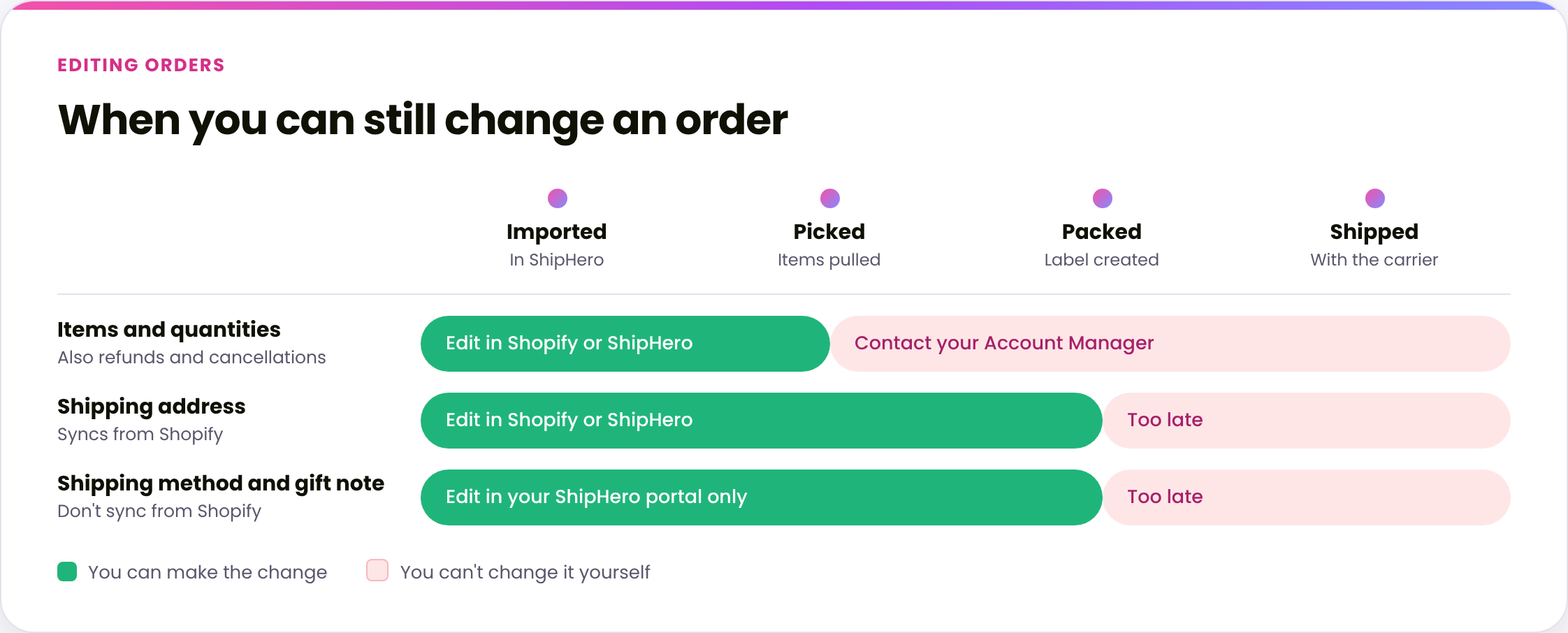
When you edit an order in Shopify after it has imported to ShipHero, only some changes reach us. Some sync automatically, some sync only if you choose the right option in Shopify, and some never sync and have to be made in your ShipHero portal instead. Every edit also has a cutoff: once the warehouse picks or packs the order, it can't be changed. This guide shows what happens to each type of edit and where to make it.
Who does what
You: make the edit in Shopify or in your ShipHero portal before the cutoff, and check the change reached the order in ShipHero.
Manifest: picks, packs and ships the order as it stands in ShipHero.
Your Account Manager: helps when an order needs changing after it's been picked.
When to use this guide
You've changed an order in Shopify and want to know whether the change reaches us.
A customer asked to change their address, items or shipping method after ordering.
You've refunded or cancelled an order in Shopify.
When not to use this guide
Situation | Use instead |
|---|---|
You want step-by-step instructions to add an item | |
You want to change the shipping method | |
You want to cancel an order | |
The order has already shipped |
Before you start
Open the order in your ShipHero portal at shipsfor.us and check it hasn't been picked yet. A yellow banner at the top of the order means the warehouse is already working on it, so contact your Account Manager instead of editing it.
1. Check what syncs
Edit made in Shopify | Syncs to ShipHero? | Cutoff | What to do |
|---|---|---|---|
Add, remove or replace items, or change quantities | Yes | Before the order is picked | Edit in Shopify, or see How to Add an Item to an Order, How to Remove an Item from an Order or How to Substitute or Replace Items on an Order |
Shipping address | Yes | Before the order is packed | Edit in Shopify, or see How to Edit a Shipping Address on an Order |
Shipping method | No | Before the order is packed | Change it in your ShipHero portal. See How to Edit the Shipping Method on an Order |
Customer or gift note | No | Before the order is packed | Change the Gift Note on the order in your ShipHero portal |
Order tags | Yes, but automation rules don't run on them | Before the order is picked | If a tag should trigger a rule, ask your Account Manager |
Full refund | Only if you restock all items | Before the order is picked | Choose to restock all items when you refund in Shopify, or cancel the order in ShipHero |
Partial refund | Only if you restock the refunded items | Before the order is picked | Choose to restock those items when you refund in Shopify, or remove them in ShipHero |
Cancellation | Only if you restock the items | Before the order is picked | Choose to restock the items when you cancel in Shopify, or cancel in ShipHero. See How to Cancel an Order |
2. Make edits that don't sync in your ShipHero portal
Log in to your ShipHero portal at shipsfor.us, click Orders in the left-hand menu, then click Orders again in the menu that opens.
Search for the order and click the order number to open it.
Make the change, such as the shipping method or gift note, and save it.
Gift notes aren't printed or included in the box automatically. If you want them included, ask your Account Manager to set up a gift note workflow for your account.
3. Refunds and cancellations: always restock
When you refund or cancel an order in Shopify, choose to restock the items. That's what releases them from the order in ShipHero. If you don't restock, the items stay allocated in ShipHero and the order can still be picked and shipped.
If you've already refunded or cancelled without restocking, cancel the order or remove the items in your ShipHero portal before it's picked.
Verify
Open the order in your ShipHero portal and check the change shows on the order.
Changes you make in your ShipHero portal are recorded in the order's History.
Things to avoid
Don't change the shipping method in Shopify and assume it reached us. It doesn't sync. Change it in your ShipHero portal.
Don't refund or cancel without restocking. The order can still ship.
Don't rely on a tag added after the order imported to trigger an automation rule. Rules only run when the order first imports.
Don't edit an order with a yellow banner. The warehouse is already working on it. Contact your Account Manager instead.
Don't wait to make changes. Once an order is picked, items can't be changed, and once it's packed, the address and shipping method can't either.