How to View Out of Stock SKUs and # of Backordered Units
Last updated: October 20, 2026
The Products page in your ShipHero portal at shipsfor.us shows which SKUs have units on backorder, meaning units that have been sold on open orders but can’t ship yet.
View backordered SKUs
Log in to shipsfor.us and click Products in the left-hand menu.
Click the Backorder tab at the top of the page. The list filters to every SKU with at least one unit on backorder. The Backorder column shows how many units for each one. SCREENSHOT 1:
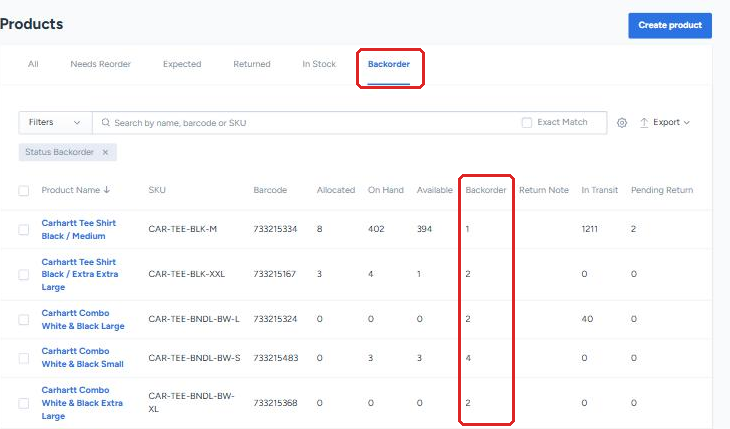
A SKU can appear on this tab even if it has stock On Hand and Available. If you see that and aren’t sure why the units can’t ship, contact your Account Manager.
To see SKUs that are completely out of stock, look for rows where On Hand is 0.
Read the inventory columns
Read these four columns together for any SKU.
Allocated: units assigned to open orders.
On Hand: units physically in Manifest’s warehouse.
Available: units you can still sell. This is the number sent to your store.
Backorder: units on open orders that don’t have stock to ship yet.

Example: 3 Allocated, 3 On Hand, 0 Available and 2 Backorder means all 3 units in the warehouse are assigned to orders, nothing is left to sell, and 2 more units have been sold that can’t ship until new inventory arrives.
Backordered orders ship automatically once new inventory is received and put away. The In Transit column shows units already on their way to the warehouse.
Tips
Find a SKU: use the search bar to search by name, barcode or SKU. Check Exact Match to see only exact results.
Sort: click a column header with an arrow, such as Product Name, to sort by that column.
Show more rows: use Rows per page at the bottom to show 10, 20 or 50 rows.
Export: use Export to download the list.
Related
Product Page Terms & Inventory Levels explains every tab and column.
Order Page Terms & Statuses explains how backordered orders appear on the Orders page.