How to Create a Manual Order in ShipHero
Last updated: October 20, 2026
You can create orders directly in your ShipHero portal at shipsfor.us without the order coming from Shopify or another sales channel. This is useful for one-off orders, replacements, or any order created outside your connected store.
Creating an order takes three steps: Items, Customer details and Order details. Click Continue at the end of each step to move to the next one.
Steps
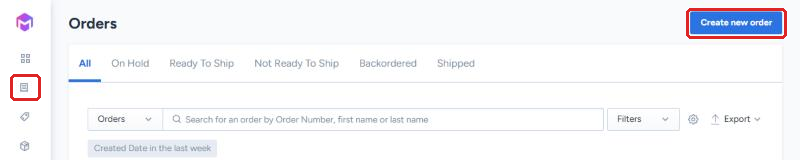
Start a new order. Log in to shipsfor.us and click Orders in the left-hand menu. Then click Create new order in the upper right corner.
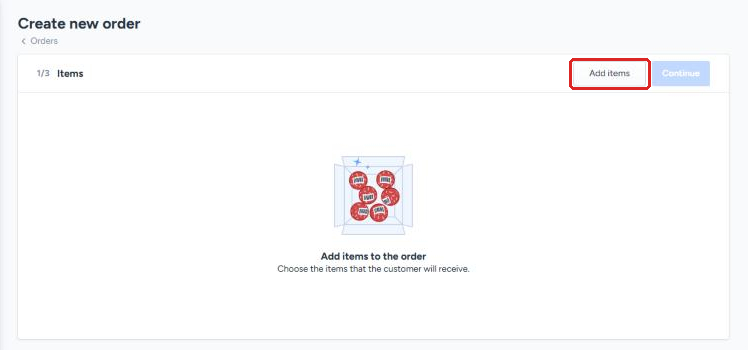
Add items. Click Add items.
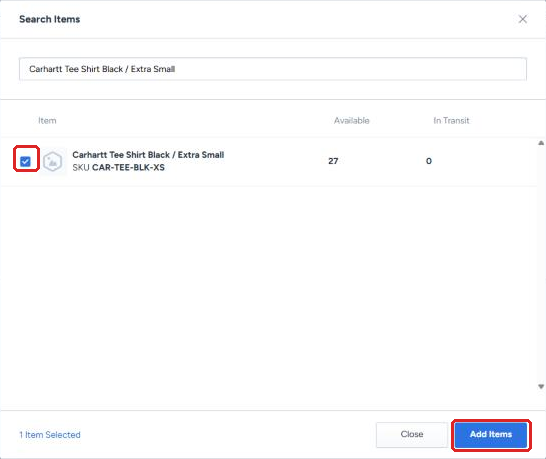
Search for each item by name, SKU or barcode, check the box next to it, then click Add Items. The Available column shows how many units are in stock.
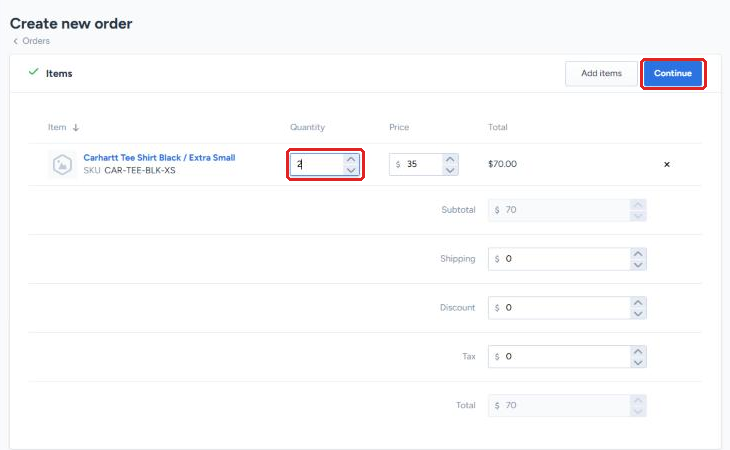
Set quantities. Enter the number of units for each item in the Quantity field. Use Add items again to add more SKUs, or the x at the end of a row to remove one. When the items are right, click Continue.
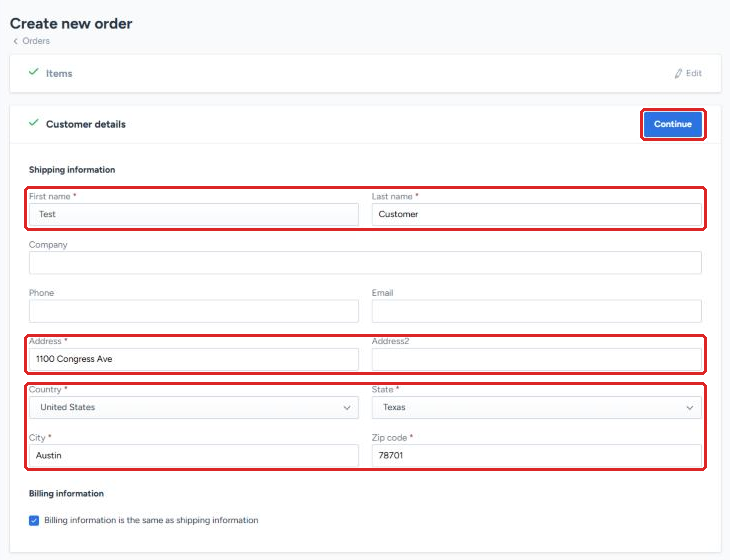
Enter customer details. Fill in the customer's shipping information. First name, last name, address, country, state, city and zip code are required. Billing information is the same as shipping by default; uncheck the box at the bottom if it's different. Click Continue.
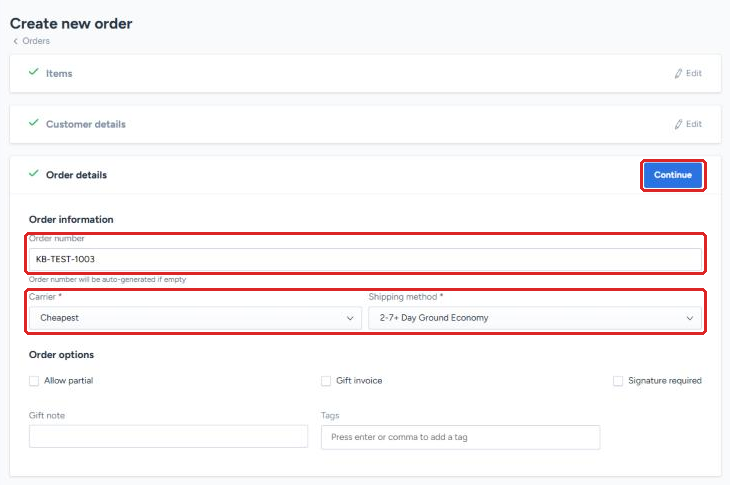
Enter order details. Enter an Order number, or leave it blank and one is generated for you. Choose a Carrier and Shipping method. See How to Edit the Shipping Method on an Order for help choosing. Add any order options you need, such as a gift note or tags.
Create the order. Click Continue. A confirmation message appears and the new order opens. It follows the standard fulfillment workflow from here.
After you create the order
Open the order and check the banner at the top. If the shipping address couldn't be verified, the order is placed on an Address Hold and won't ship until it's fixed. See How to Manage Order Holds.
For B2B and FBA Prep orders
Manual orders for B2B or FBA Prep fulfillment need a specific naming convention and automation rule setup before they trigger the right warehouse workflow. See How to Create B2B/FBA Prep Orders before creating these order types manually.
To create many orders at once, see How to Create Manual Orders via Bulk Upload.