How to Manage Order Holds
Last updated: October 21, 2026
If an order is on hold, it can't ship from Manifest's warehouse until the hold is resolved. The hold type on the order tells you what caused it and what you need to do to release it.
Note: D2C orders that are still on hold at 12 PM CT won't ship until the following business day.
See which holds are on an order
Log in to your ShipHero portal at shipsfor.us and click Orders in the left-hand menu. Orders on hold show On Hold in the Status column, and the Holds column lists each hold on the order.

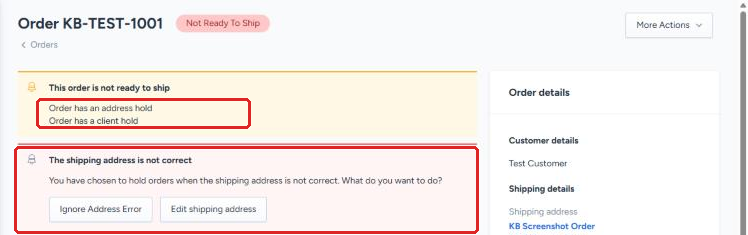
Click the order number to open it. The yellow banner at the top of the order lists every hold. For an Address Hold, a second banner appears with options to fix the address.
Place or remove a hold on one order
Open the order. Click Orders in the left-hand menu, search for the order and click the order number.
To place a hold, click the blue Hold Order button in the upper right corner and choose Client Hold.

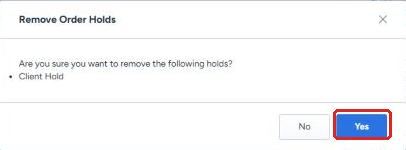
To remove a hold, click the red Remove Hold button in the upper right corner. A window lists the holds that will be removed. Click Yes to confirm.
Warning: removing a hold sends the order straight to the warehouse. Once the last hold is removed and the items are in stock, the order moves to Ready to Ship and can be picked right away. Make sure the order is correct before you remove the hold.

An order with an Address Hold doesn't show the Hold Order or Remove Hold buttons. Resolve the address first using the options in the address banner (see Address Hold below), or use the bulk steps that follow.
Place or remove holds on several orders at once
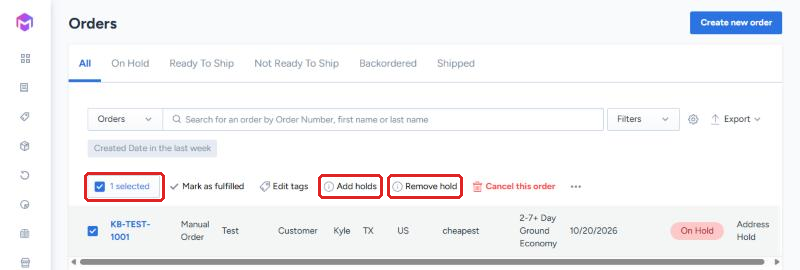
On the Orders page, check the box next to each order you want to update. A row of actions appears above the list.
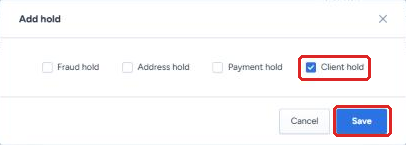
To place a hold, click Add holds, check Client hold, then click Save.
To remove a hold, click Remove hold, choose the hold type to remove, then click Save. Only one hold type can be removed at a time, so repeat this step if an order has more than one hold.
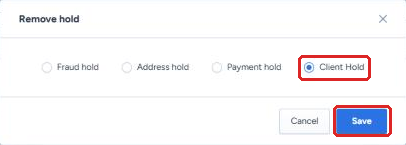
Hold types and how to resolve them
Client Hold. A hold you placed on the order yourself. Remove it in the portal when you're ready for the order to ship.
Fraud Hold. ShipHero applies this automatically based on Shopify's order risk assessment. Review the order in your store, then remove the hold if the order is legitimate or cancel the order if it isn't. Contact your Account Manager to change which Shopify risk levels trigger a fraud hold on your orders.
Only remove a Fraud Hold once you’re sure the order is legitimate. Once it ships, it can’t be stopped.
Payment Hold. Applied automatically based on payment status information from your store. Contact your Account Manager to change which payment statuses import to ShipHero and trigger a hold.
Address Hold. ShipHero checks every shipping address with the USPS address validator. If an address can't be verified and no alternate address is found, the order is placed on hold automatically. Open the order and click Edit shipping address in the address banner to correct it. See How to Edit a Shipping Address on an Order. If you've confirmed the address is correct as entered, click Ignore Address Error to release the hold. Contact your Account Manager to set up email notifications for address holds.
Warning: Ignore Address Error ships the order to the address exactly as entered. Only use it if you’ve confirmed the address with the customer. If the address turns out to be wrong, the package may be returned or lost, and carrier address correction fees may apply.
Operator Hold. Placed by Manifest's operations team when an order has an issue that needs attention. Contact your Account Manager to find out why the order is on hold. Manifest releases the hold once the issue is resolved.