How to Add an Item to an Order
Last updated: October 20, 2026
You can add items to an order directly in your ShipHero portal at shipsfor.us, as long as the order has not been picked yet. Once an order has been picked, it can't be edited.
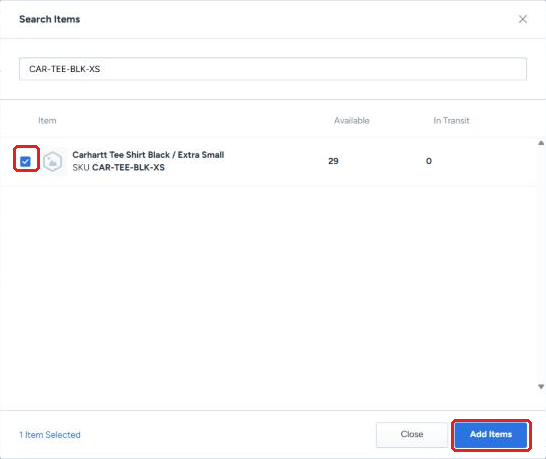
Before you start: Make sure the item you want to add has available inventory. The search window in step 4 shows how many units are available for each SKU. Adding an item that isn't in stock will keep the order from being ready to ship.
Steps
Find the order. Log in to shipsfor.us and click Orders in the left-hand menu. Search for the order by order number, or by the customer's first or last name.
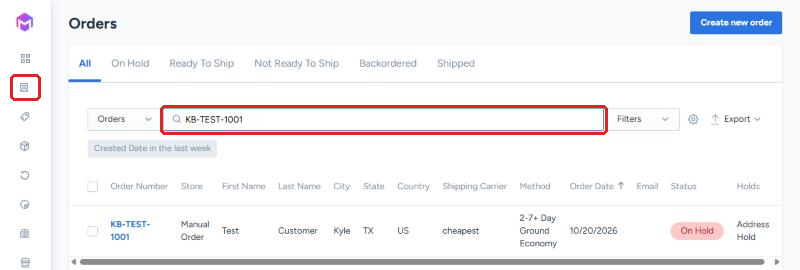
Open the order. Click the order number to open the order details.
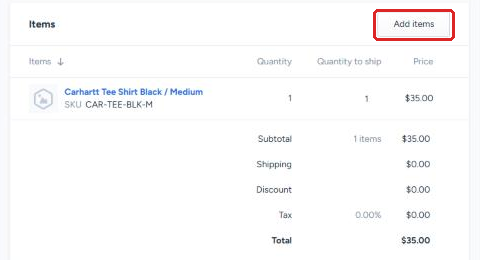
Click Add items. In the Items section of the order, click Add items.
Select the item. Search for the item by name, SKU or barcode. Check the box to the left of the SKU, then click the blue Add Items button. The item is added to the order with a quantity of one.
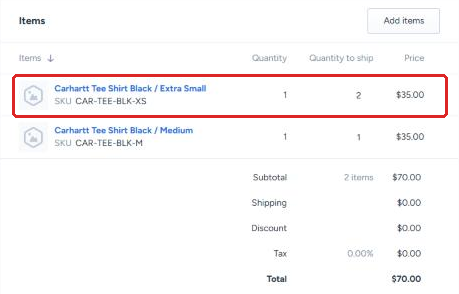
Change the number of units, if needed. Click the number in the Quantity to ship column for the new item, type the number of units you need, then click anywhere outside the field to save. A green confirmation message appears at the top of the page.
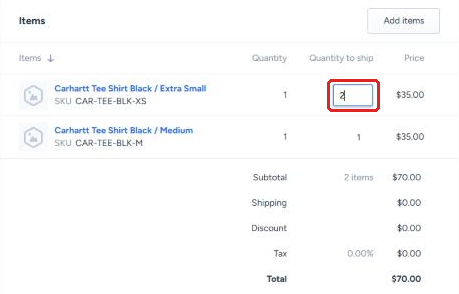
Verify
Check that the new item appears in the Items section with the correct quantity before you leave the page.
If the order has already been picked, or you need help with a change you can't make yourself, contact your Account Manager.