How to Place a Pickup Order
Last updated: September 15, 2026
This guide covers how to place an order that will be picked up from the warehouse instead of shipped by a carrier. It applies to merchant pickups only.
Note: Pickup is a merchant-only process. It cannot be used for customer orders. Any order going to an end customer must be shipped through standard carriers.
Pickup orders have to be flagged correctly when you place them. If they are not, the system treats them as standard orders, shops a carrier rate, and generates a shipping label. The three details below prevent that and tell the warehouse team to set the order aside for collection.
Required order details
Every pickup order must include all three of these values, entered exactly as written:
Field | Value |
|---|---|
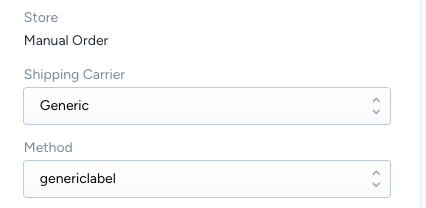
Carrier > Shipping method | Generic > genericlabel |
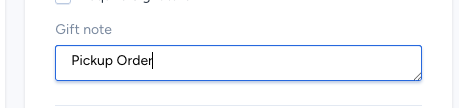
Warehouse note | Pickup Order |
Address line 1 | Pickup |
How to place the order
Create the order as you normally would, with the correct items and quantities.
Set the shipping method to Generic > genericlabel. This stops the order from
being rate-shopped and prevents a carrier label from being generated.
Enter Pickup in address line 1.
Add Pickup Order to the Gift Note field.
You do not need to complete the remaining recipient fields. If any are required, enter Pickup as the value wherever you can.
Click Save in blue.
Why each detail matters
Shipping Carrier > Method (Generic > genericlabel): Standard shipping methods trigger automatic rate shopping and label creation. Generic > genericlabel bypasses that, so the order is never handed off to a carrier.
Gift Note (Pickup Order): This is the flag the fulfillment team sees during pack. It tells them to hold the order for pickup rather than handing off to carrier sortation team.
Address line 1 (Pickup): This is a second visual safeguard. It keeps the order clearly marked as a pickup at every step, so it is not shipped by mistake. It can also prevent label generation through a normal carrier, since the address will not be found during validation.
What happens next
Once the order is placed and flagged, the warehouse picks and packs it, then holds it for collection.
Email your account manager with the order ID or IDs for pickup. Your AM will confirm when the pickup can be completed and where to go to complete it, including the specific dock door number. Wait for that confirmation before you arrive, so the order is ready and the location is set.
Common mistakes to avoid
Leaving the shipping method on a standard carrier option. This is the most common reason a pickup order ships by accident. Confirm it reads Generic > genericlabel before saving.
Skipping the warehouse note or the address flag. Both are needed. The note alerts the team, and the address line keeps the order marked through fulfillment.
Not emailing your AM the order IDs. Send your account manager the order ID or IDs for pickup and wait for them to confirm the timing and the pickup location. Showing up without that confirmation means the order may not be ready and you may not know where to go.