Unmapped Shipping Option
Last updated: November 11, 2026
When an order comes into ShipHero with a shipping option that isn't mapped to a carrier and service, ShipHero doesn't know what label to buy. The order is set to a Generic Label, placed on a Client Hold and won't ship until the shipping method is fixed. This guide shows you how to find these orders, fix the ones already in ShipHero and stop it happening again.
The fix has four parts:
Find the affected orders.
Work out why the shipping option didn't map.
Fix the order, and the mapping if the option will be used again.
Release the hold so the order can ship.
Who does what
You: map new Shopify shipping options in ShipHero, choose a mapped shipping rate on draft orders, fix the shipping method on affected orders and remove the Client Hold.
Manifest: places unmapped orders on a Client Hold, emails you about them, and ships them once they're fixed.
Your Account Manager: answers questions about which carrier and service an option should map to.
When to use this guide
You got an email saying an order has an unmapped shipping method.
An order is on hold and its Method shows genericlabel when you didn't set it that way.
You've added, renamed or removed a shipping option in Shopify.
When not to use this guide
Situation | Use instead |
|---|---|
You want to change the shipping method on an order that imported correctly | |
The order is set to Generic on purpose because it ships on a prepaid label or BOL | |
The order is on hold for an address, fraud or payment reason | |
You're setting up shipping mapping for the first time |
Before you start
Have the order number and the shipping option the customer chose. You'll find it on the order in Shopify.
Know which carrier and service, or which Manifest rate shop method, that option should ship on. The Rate Shop Methods page lists the rate shop methods.
1. Find the affected orders
Log in to your ShipHero portal at shipsfor.us, click Orders in the left-hand menu, then click Orders again in the menu that opens.
Click the On Hold tab.
Look for orders with a Client Hold whose Method shows genericlabel.
Orders you set to Generic on purpose, because they ship on a prepaid label or BOL, also show genericlabel. Leave those alone.
2. Work out why it happened
Cause | How to tell | Fix |
|---|---|---|
A new or renamed shipping option in Shopify isn't mapped in ShipHero | The order's Shopify shipping option is one you recently added or renamed, or it's missing from the ShipHero mapping | Map the option (section 3), then fix the order (section 4) |
A Shopify draft order was completed with a custom rate or no rate | The order was created as a draft order, such as a wholesale, replacement or influencer order | Fix the order (section 4). For future draft orders, see Shopify Draft Orders: Selecting a Shipping Rate |
ShipHero matches shipping options by name, so even a small change to a rate's name in Shopify, like "Ground" to "Ground Shipping," leaves it unmapped.
3. Map the shipping option for future orders
Do this when the cause is a new or renamed Shopify shipping option, so the next order with that option imports correctly.
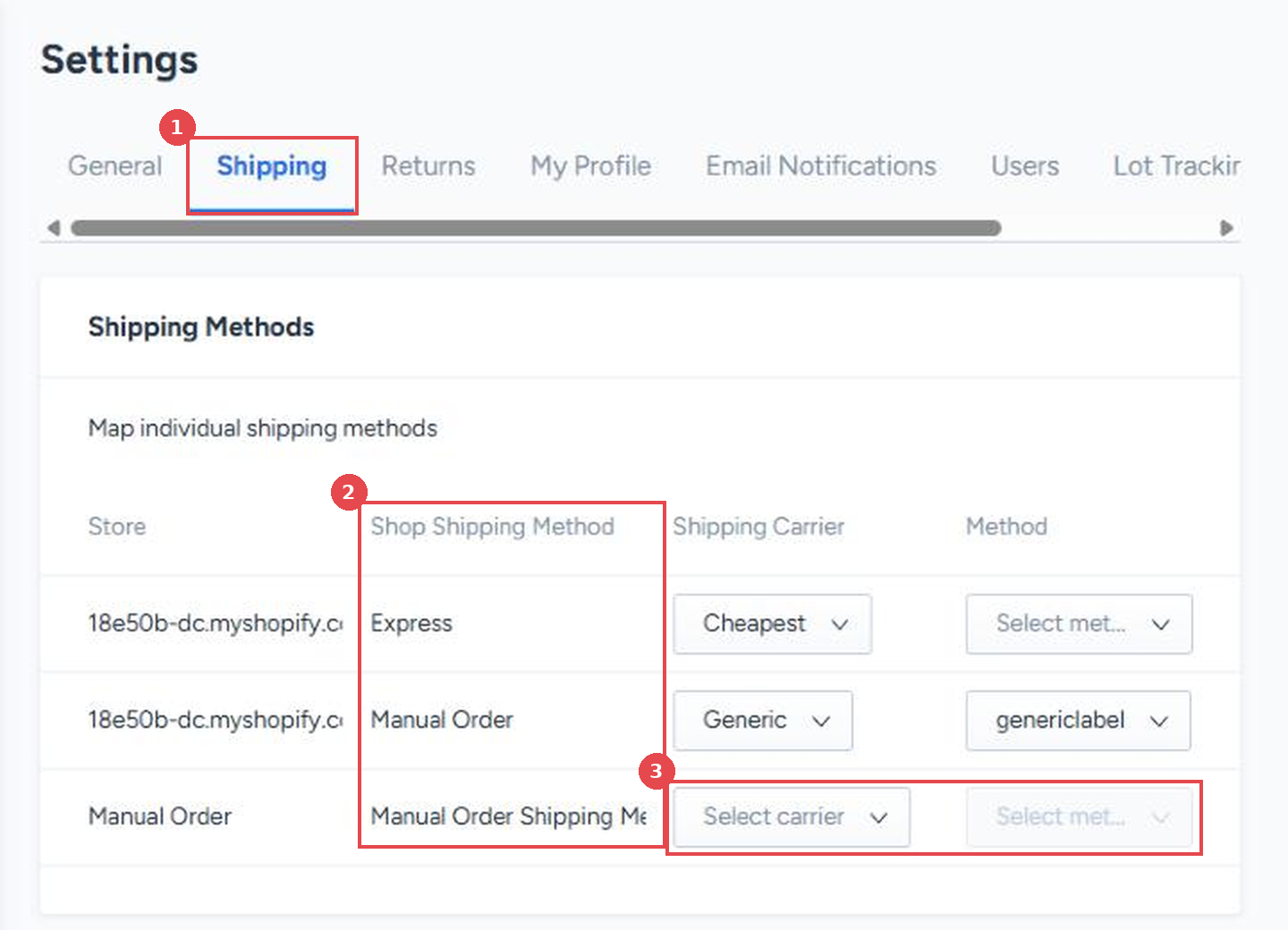
Click Settings in the left-hand menu, then the Shipping tab (1).
Find the shipping option in the Shop Shipping Method column (2). It's named exactly as it appears in Shopify.
An unmapped option shows Select carrier or Select method (3). Choose the Shipping Carrier and Method for it, then click Save.
For the full mapping steps and how to choose between a specific service and a rate shop method, see How to Set Up and Configure Shipping Methods.
A new or renamed option only appears in the table after its first order imports, which is why that first order always comes in unmapped. A mapping change only applies to orders imported after the change. Orders already on hold still need to be fixed one by one in section 4.
4. Fix the shipping method on the order
Open the order from the Orders list.
Under Order details, set Shipping Carrier and Method to the carrier and service, or Manifest rate shop method, the order should ship on.
Click Save.
Full steps are in How to Edit the Shipping Method on an Order. Repeat this for every order on hold with the unmapped option.
5. Release the hold
Unmapped orders are placed on a Client Hold, which you can remove yourself. Once the shipping method is fixed, click Remove Hold in the upper right of the order and confirm. See How to Manage Order Holds.
Removing the last hold sends the order straight to the warehouse, so check the shipping method is right before you remove it.
Verify
The order's Method no longer shows genericlabel.
The order's status changes from On Hold to Ready once the hold is removed and the items are in stock.
After the hold is released, we add 1 to 2 business days to the order's processing time so our team can reprocess it. Plan for that if the order has a delivery deadline; see How to Deliver an Order by a Specific Date.
Things to avoid
Don't add or rename a shipping option in Shopify without watching for its first order. The option can't be mapped until its first order imports, so map it as soon as it appears in ShipHero, or every later order that uses it will also import unmapped and go on hold.
Don't complete a draft order with a custom rate or no rate. Pick one of your store's existing, mapped rates.
Don't expect a mapping change to fix orders already on hold. Mapping only applies to new orders; fix each held order too.
Don't change a Generic order you set up on purpose. Orders shipping on a prepaid label or BOL are meant to show genericlabel.
Don't remove the hold before fixing the method. The order goes straight to the warehouse once the last hold is removed.