How to Deliver an Order by a Specific Date
Last updated: July 15, 2026
If an order must arrive on or before a specific date, you need to account for both Manifest's processing SLA and the carrier's transit time when selecting a shipping method. Work backwards from the required delivery date to determine what shipping service is needed.
Step 1: Note your "deliver on" or "deliver before" date
Determine the exact date, and day of the week, the order must deliver by.
Step 2: Determine your processing SLA
Identify how long Manifest needs to process and generate a label for your order. See Manifest's SLA Guide for turnaround times by order type. Day Zero of your SLA is the business day the order enters Manifest's fulfillment queue based on these SLAs. For example, Day Zero for a D2C order imported before 12:00 pm CT on a Tuesday (that isn't a holiday) is that same Tuesday.
Step 3: Choose a shipping method that guarantees delivery by the "deliver on" or "deliver before" date
Once you know when the label will be generated, count the remaining business days to your required delivery date and edit the shipping method on the order to cover that window.
IMPORTANT: 2-Day and Overnight shipping options are the only guaranteed services and therefore the only options eligible for full reimbursement of shipping costs if the delivery date is not met. All other carriers and services provide estimated arrival windows only and are not guaranteed. If delivery by a specific date is critical, we strongly advise selecting a guaranteed 2-Day or Overnight service.
Illustrative example:
Today is Tuesday before 12:00 pm CT. Your required delivery date is the following Monday. The order has 30+ units with no special handling, making it a Standard B2B order with a 3 business day processing SLA.
Manifest will complete processing by end of day Friday. Selecting an Overnight shipping option ensures carrier delivery by end of day Monday.
To edit the shipping method on an existing order, see How to Edit the Shipping Method on an Order.
Step 4: Confirm order is Ready to Ship
Log in to the ShipHero client portal
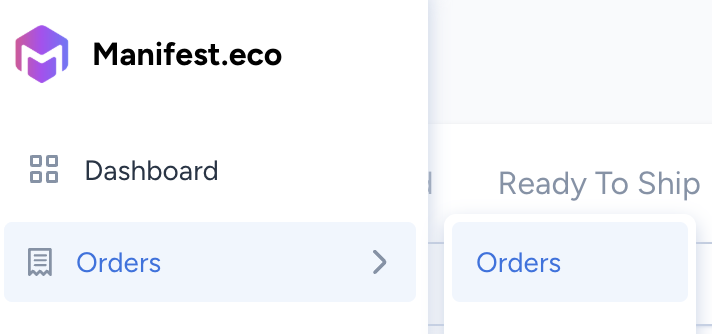
Click Orders in the right navigation
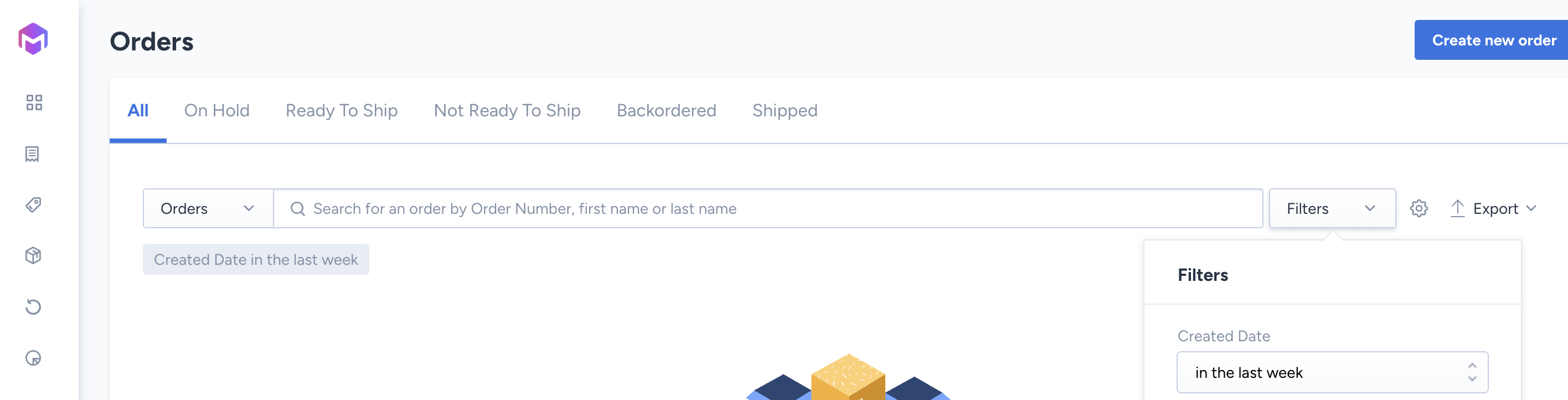
Search for the order in question (changing filter for Created Date if needed!)
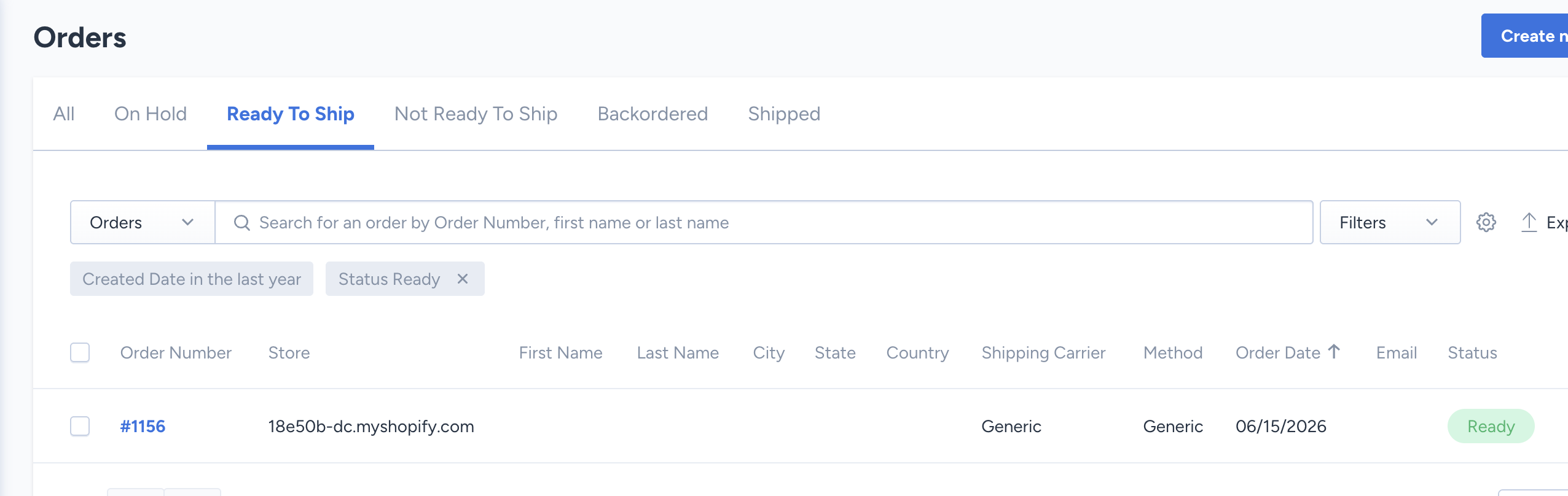
Confirm that it states Ready in green