Shopify Draft Orders: Selecting a Shipping Rate
Last updated: November 11, 2026
When you create a draft order in Shopify, such as a wholesale, replacement or influencer order, pick one of your store's existing shipping rates before you complete it. ShipHero matches each order to a carrier and service by the name of its shipping rate, so a custom rate, or no rate at all, imports unmapped and the order goes on hold until it's fixed. This guide shows you how to choose a mapped rate on a draft order, and what to do if one slips through.
Who does what
You: choose a mapped shipping rate on every draft order, map any new rate in ShipHero, and fix and release draft orders that import unmapped.
Manifest: places unmapped orders on a Client Hold, emails you about them, and ships them once they're fixed.
Your Account Manager: answers questions about which carrier and service a rate should map to.
When to use this guide
You create orders by hand in Shopify as draft orders.
You're sending a wholesale, replacement, sample or influencer order that doesn't go through checkout.
A draft order imported into ShipHero as genericlabel and went on hold.
When not to use this guide
Situation | Use instead |
|---|---|
A regular checkout order imported unmapped | |
You're setting up shipping mapping for your store | |
You want to change the shipping method on an order already in ShipHero | |
The order ships on a retailer's prepaid label or BOL |
Before you start
Know which of your store's shipping rates the order should use. Every rate your customers see at checkout is already mapped in ShipHero, as long as it has shipped an order before.
If none of your rates fit, such as free shipping for influencer orders, see section 3 before you create the draft.
1. Choose a shipping rate on the draft order
In your Shopify admin, go to Orders > Drafts and create or open the draft order.
Add the products and the customer as usual.
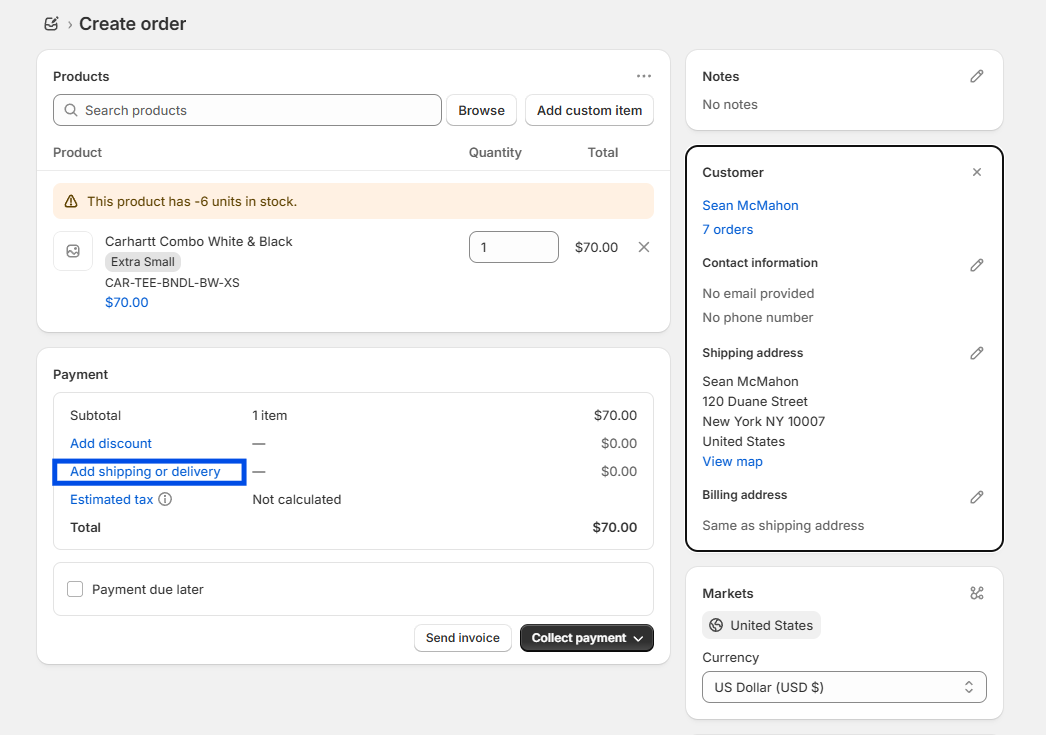
Click Add shipping or delivery.
Choose Shipping rate and pick one of your store's rates from the dropdown. Don't choose a custom rate.
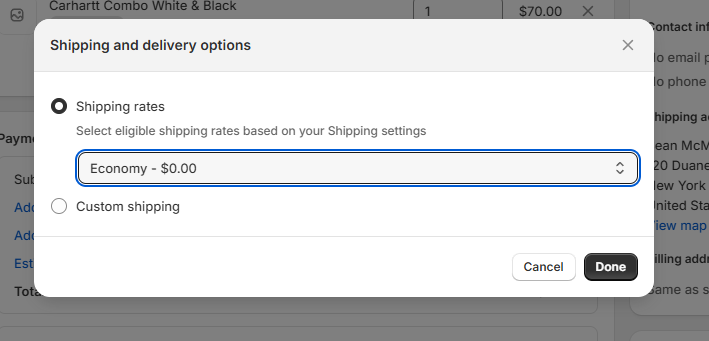
Click Apply, then complete the draft order.
2. Check the order in ShipHero
Log in to your ShipHero portal at shipsfor.us, click Orders in the left-hand menu, then click Orders again in the menu that opens.
Search for the order number and open it.
Under Order details, check that Shipping Carrier and Method show a carrier and service or a Manifest rate shop method, not Generic and genericlabel.
If the order came in on genericlabel and is on a Client Hold, fix it yourself:
Set Shipping Carrier and Method to the carrier and service, or Manifest rate shop method, the order should ship on, and click Save. See How to Edit the Shipping Method on an Order.
Click Remove Hold in the upper right of the order and confirm. See Unmapped Shipping Option.
After the hold is released, we add 1 to 2 business days to the order's processing time so our team can reprocess it.
3. Add a rate for orders that don't fit your existing ones
If you regularly send draft orders that don't fit any of your rates, such as free shipping for influencer orders, add a dedicated rate in Shopify instead of using a custom rate each time. See Shopify Help Center: Shipping rates.
A new rate only appears in ShipHero after the first order that uses it imports, so that first order comes in unmapped and goes on hold. When it does:
Map the new rate in Settings > Shipping in your ShipHero portal and click Save. See How to Set Up and Configure Shipping Methods.
Fix and release that first order as in section 2.
Every draft order after that with the new rate imports mapped.
Verify
The order's Shipping Carrier and Method in ShipHero show the carrier and service, or rate shop method, you expected.
The order isn't on hold and moves to Ready once its items are in stock.
Things to avoid
Don't use a custom rate on a draft order. ShipHero can't match it, so the order imports unmapped and goes on hold.
Don't complete a draft order without a shipping rate. It imports the same way as a custom rate.
Don't rename a rate in Shopify without watching for its next order. ShipHero treats the new name as a new, unmapped rate.
Don't leave a held draft order for us to fix. Fixing the shipping method and removing the Client Hold is quick, and the order won't ship until it's done.