Why Hasn't My D2C Order Shipped Yet?
Last updated: October 21, 2026
Why Hasn’t My D2C Order Shipped Yet?
If a D2C order hasn’t shipped, you can see its status and the reason directly in your ShipHero portal at shipsfor.us.
Shipping timelines: D2C orders that are Ready to Ship by 12:00 PM CT ship the same business day. Orders that become ready after 12:00 PM CT ship the next business day. The clock starts when the order reaches Ready to Ship, so an order on hold or backordered starts its timeline once it’s released. See Manifest SLAs & Turnaround Times for full details.
Check the order’s status
Open Orders. Log in to shipsfor.us and click Orders in the left-hand menu. The page opens on the All tab. Use the tabs to filter by status, or the Status column to see each order’s status at a glance.
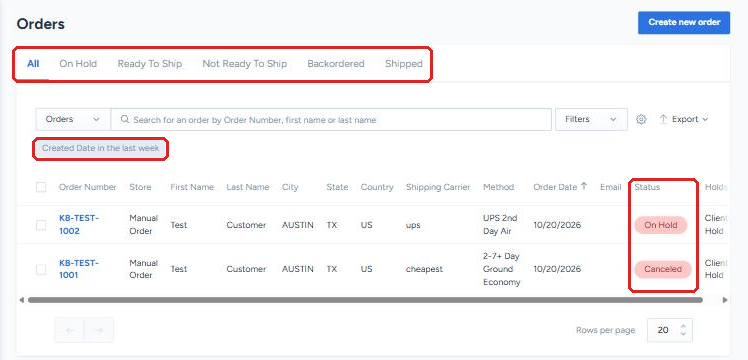
Find the order. Search by order number, or by the customer’s first or last name. If the order doesn’t appear, change the Created Date filter, which defaults to the last week.
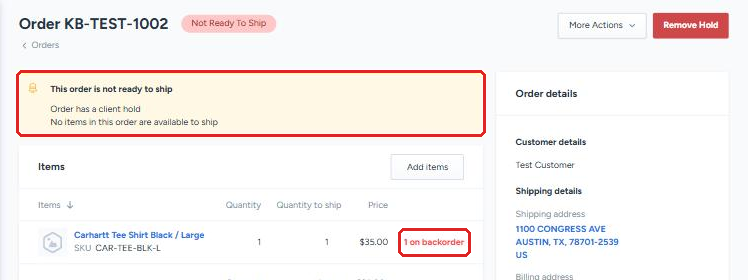
Read the banner. Click the order number. If the order can’t ship, a yellow banner at the top lists every reason, for example a hold or no stock. Items without stock show a red on backorder note in the Items section.
What each status means
Ready To Ship: the order is queued and will ship within Manifest’s standard timelines. No action needed.
On Hold: the order can’t ship until the hold is removed. The banner shows the hold type, and each type is resolved differently. See How to Manage Order Holds.
Not Ready To Ship: something is blocking the order, usually a hold or items without enough stock. The banner explains which.
Backordered: one or more items are out of stock. The order ships automatically once new inventory is received and put away. To ship the in-stock items now, see How Does the Allow Partial Feature Work?
Shipped: the order has left the warehouse. See How to Track an Order.
Common fixes
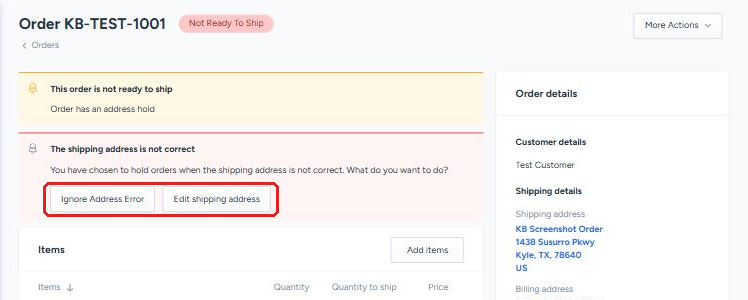
Address Hold: ShipHero couldn’t validate the shipping address. Use Edit shipping address to correct it, or Ignore Address Error if you’ve confirmed it’s right. See How to Edit a Shipping Address on an Order.
Out of stock: check the SKU on the Products page. See How to View Out of Stock SKUs and # of Backordered Units. Then send a replenishment shipping plan, or turn on Allow Partial for that order.
Client, Fraud or Payment Hold: review the order, then remove the hold when it’s ready to ship. See How to Manage Order Holds.
Time-sensitive orders: Manifest focuses on orders that are Ready to Ship and doesn’t actively monitor orders that are on hold or backordered. If one of those needs to go out by a certain date, let your Account Manager know.
Still not sure?
Contact your Account Manager with the order number and a screenshot of the banner at the top of the order.