Manifest Invoices - Client Detail Excel File
Last updated: November 5, 2026
Manifest provides a Client Detail Excel file with each monthly invoice. It breaks down every fulfillment and shipping charge for the month across several tabs. This article explains what each tab shows, how to trace a charge back to the orders behind it, and answers the questions merchants ask most.
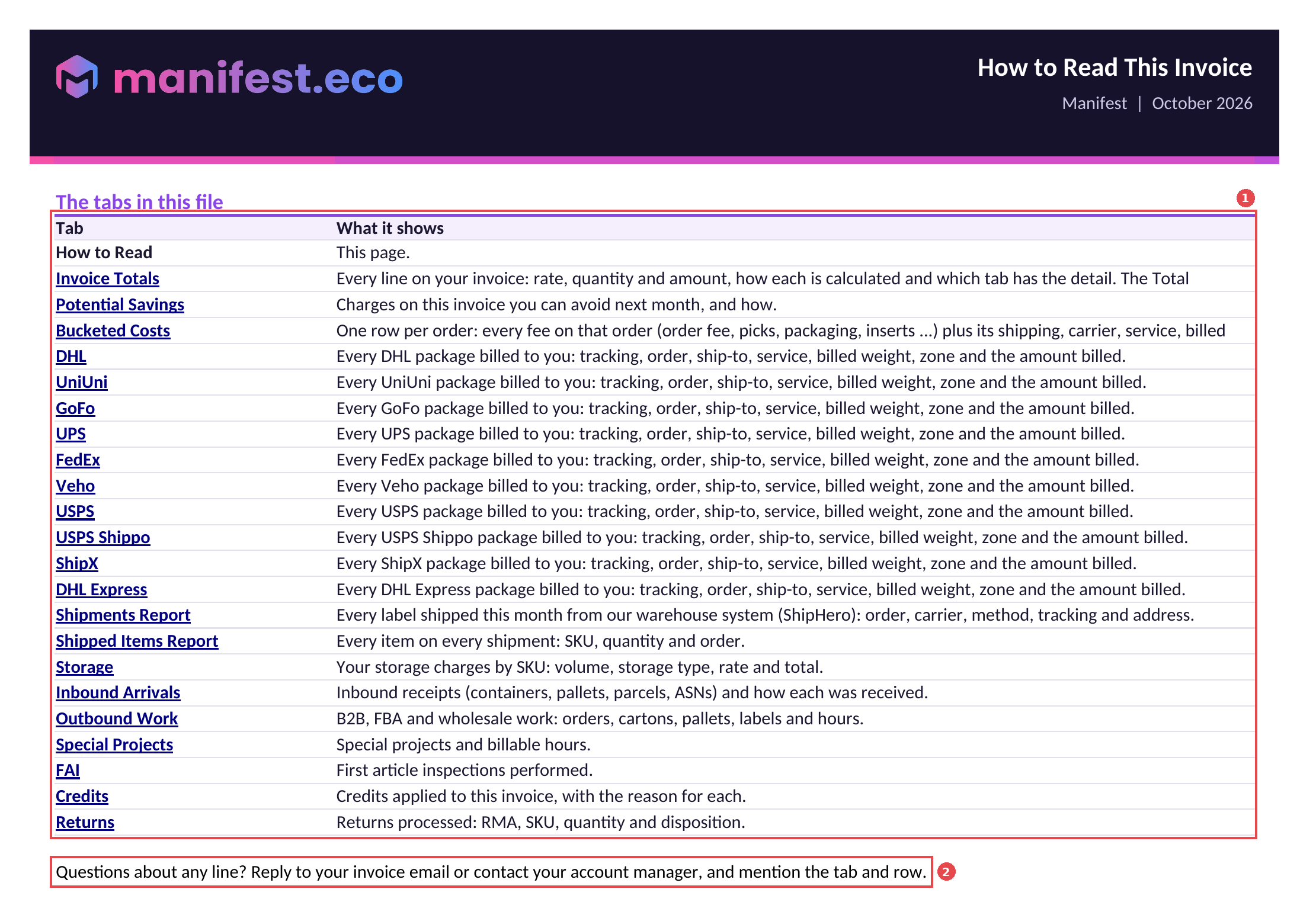
Start with the How to Read tab inside your file. It lists every tab in that month's file, and tabs only appear when they apply to your account that month. Every data tab has filters on its header row, so you can sort and filter in Excel or Google Sheets.
How to trace a charge
To see exactly what makes up any line on your invoice:
On the Invoice Totals tab, find the line you want to check.
Read Where to find the detail for that line. It names the tab, and where relevant the column, that holds the rows behind it.
Open that tab. On Bucketed Costs, filter Channel to D2C or B2B to match the line (B2C lines are your D2C orders).
Add up the named column, or count the rows for per-order fees. The result matches the line's Quantity.
For example, the B2C Fulfillment - B2C picks line points to Bucketed Costs (Billable Picks, Pick Fee). Filter Channel to D2C and sum Billable Picks; the total equals the line's Quantity, and Rate x Quantity equals the Amount.
How to Read
The first tab in the file. The tabs in this file (1) lists each tab included that month and what it shows; each tab name links to that tab. The tab also tells you who to contact with questions (2): reply to your invoice email or contact your Account Manager, and mention the tab and row you're asking about.
Invoice Totals
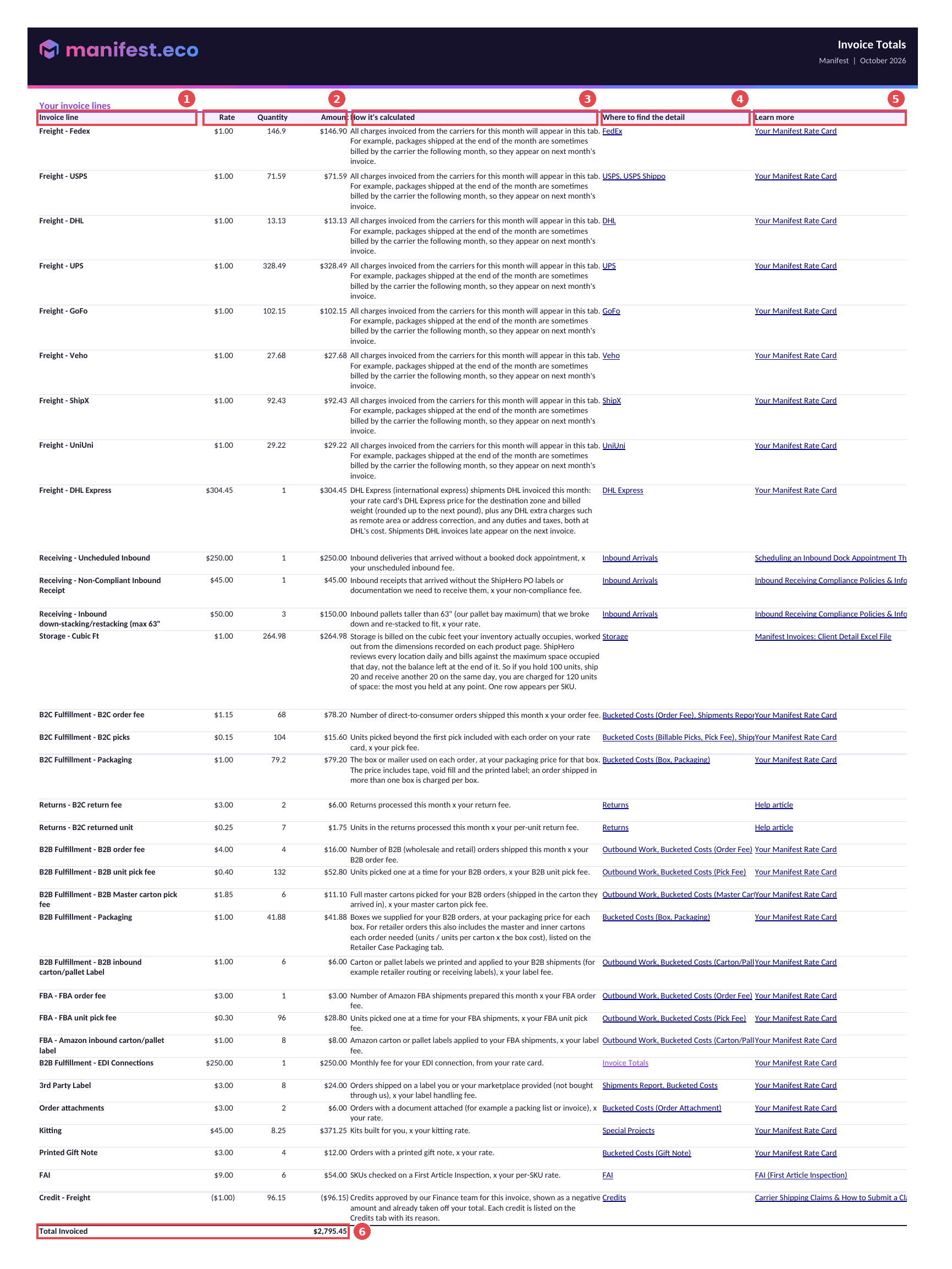
Every line on your invoice, in one place.
Column | What it shows |
|---|---|
Invoice line (1) | The charge, for example Freight for a carrier, B2C order fee, B2C picks, Packaging, or a returns fee. |
Rate, Quantity, Amount (2) | Rate x Quantity = Amount. Rate is the per-unit rate from your rate card. For lines charged as a dollar total rather than per unit, such as carrier freight, Packaging and Storage, the Rate shows as $1.00 and the Quantity is the dollar total for that line. DHL Express is the exception: its Rate shows the dollar total and its Quantity shows 1. |
How it's calculated (3) | A plain-language description of how the line is calculated. |
Where to find the detail (4) | The tab, and where relevant the columns, that hold the rows behind the line. |
Learn more (5) | A link to the related help article, such as Your Manifest Rate Card. |
The Total Invoiced row (6) at the bottom is the amount you pay.
Potential Savings
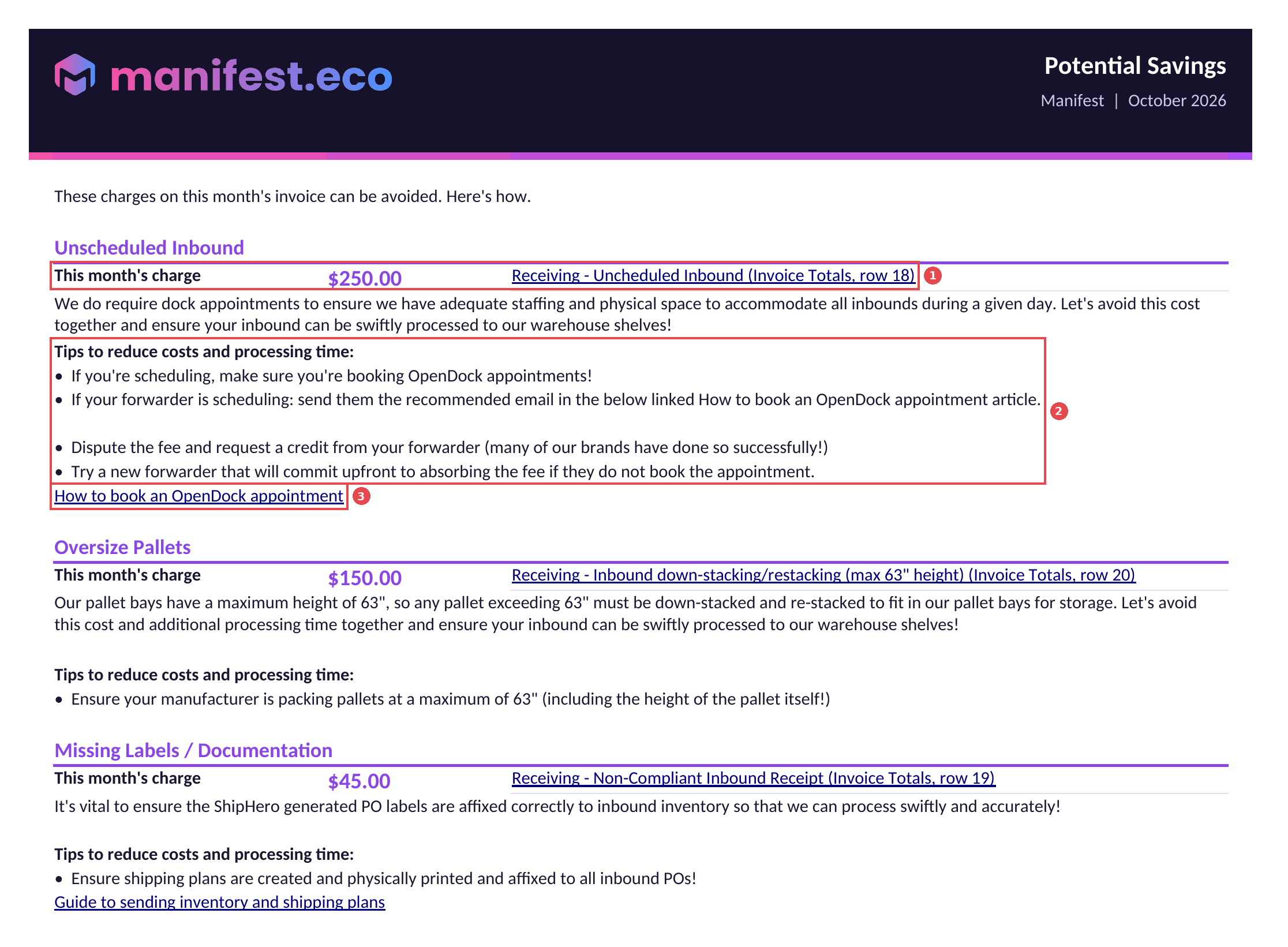
Lists charges on this month's invoice that you can avoid next month, such as unscheduled inbound deliveries, oversize pallets, or inventory that arrived without PO labels. Each block shows This month's charge and the Invoice Totals line it comes from (1), tips for avoiding the charge next month (2), and a link to the related help article (3). The tab only lists charges that appear on that month's invoice.
Bucketed Costs
A per-order breakdown of every outbound fulfillment and shipping charge, and the best tab for understanding what you paid per order. Each row is one order.

Order and shipping details: Order Number, Order ID, Ship Date, Channel (1) (D2C, B2B or FBA), Carrier, Service Level, Method, Tracking, Box, Billable Weight (lb) and Zone.
Quantities: Units Shipped, Inserts / Gift Notes, and Billable Picks.
Fulfillment charges (2): Order Fee (your D2C, B2B or FBA order fee), Pick Fee, Order Attachment (a document attached to the order), Gift Note (a printed gift note), Packaging (the price of the box or mailer used), Master Carton (full master cartons picked for B2B orders), and Carton/Pallet Label (carton or pallet labels applied to B2B and FBA shipments). These columns only appear when they apply to your account.
Freight (3): the shipping cost billed by the carrier.
Total (4): all charge columns added together.
A few things to know when reading this tab:
Billable Picks: for D2C orders, this is units picked beyond the first pick included with each order. For B2B and FBA orders, it's every unit picked one at a time; full master cartons are charged separately in Master Carton.
Orders shipped in more than one box: the Tracking cell lists every tracking number, and Packaging is charged per box.
Blank Freight for late-month orders (5): orders shipped near the end of the month often show a blank Freight cell because the carrier hasn't billed them yet. Their freight appears on next month's file. Order fees, picks and packaging are always charged in the month the order ships.
FBA Prep orders: orders that go through FBA Prep also appear on this tab, one row per order, with their charges included in the Total.
Carrier tabs (for example DHL, UniUni, GoFo, UPS, FedEx, Veho, USPS, ShipX)
There is a tab for each carrier that billed you that month. Each row is a package, so an order shipped in several boxes appears on several rows. A carrier can add a second row for the same package when it bills an extra charge, such as an Address Correction. Every carrier tab shows:
Order and tracking: Order Number and Tracking.
Destination: Ship To, Address, City, State, Zip and Country.
Service and package details: Service Level, Billed Weight and Zone.
Amount Billed: the shipping cost for that row.
Some carrier tabs add columns for specific charges: Surcharges (DHL, FedEx), Oversize Charge and USPS Adjustment (USPS), Return Fee (UniUni), and Delivery Area Surcharge (Veho).
The UPS tab works a little differently. Its Charge column (1) lists each charge on its own row, so one package can take several rows (2): the base shipping charge, any surcharges such as Delivery Area Surcharge, and Fuel Surcharge. Amount Billed (3) is the amount for each row. Fuel Surcharge rows show $0 because fuel is included in your base rate.

The Amount Billed total on each carrier tab ties to the matching Freight line on Invoice Totals.
Carriers are selected at label generation in one of two ways: a one-for-one match, where a specific carrier and service is explicitly selected for the order, or rate shop, where ShipHero selects the lowest-cost option from the carriers and services in the configured rate shop method. See Your Manifest Rate Card for what is included and excluded in carrier rates and how accessorial surcharges are assessed.
Shipments Report
Every shipping label created during the month, exported from ShipHero. Find an order by Order Number (1), see how it shipped in Carrier, Shipping Method and Tracking Number (2), and check Box Name, Quantity shipped and Distinct Items Shipped (3). Use it to confirm which orders shipped and how, and to match an order to its charges in Bucketed Costs.

Shipped Items Report
Every item on every shipment. Each row is one SKU on one shipment: match it to the order with order_number (1), and see what shipped in sku, product_name and quantity (2). Use it to see exactly which units shipped on an order and to check the picks charged on Invoice Totals.

Outbound Work
Appears when you had B2B (wholesale or retail) or Amazon FBA shipments during the month, with one row per shipment. Each row shows the Date, the Order #, and whether the shipment was FBA/Wholesale. The quantity columns count the work done for that shipment: invoices or BOLs, carton labels, prepaid or Amazon shipping labels, Amazon inbound compliance labels, individual unit labels, pallets, and any kits built or materials used.
The B2B and FBA lines on Invoice Totals (order fee, unit pick fee, master carton pick fee, and carton or pallet labels) point to this tab together with Bucketed Costs. Use Outbound Work to see which shipments and labels were counted, and Bucketed Costs for the charge on each order.
Special Projects
Appears when we did project work for you during the month, such as kitting or reworking orders held for quality checks. Each row is one project: Special Project names it, Total Hours shows the time spent as hours and minutes, Hours Billed shows the same time in decimal hours, and Type shows the kind of work, for example Kitting.
The Kitting line on Invoice Totals points to this tab. Its Quantity is the total Hours Billed for Kitting projects, charged at your kitting rate.
Storage
Appears when you were charged for storage during the month. Storage is billed on the cubic feet your inventory occupies, worked out from the dimensions on each product page. Each day, we bill on the most space your inventory occupied that day, not the balance left at the end of the day. You're charged only for inventory physically in the warehouse, not a flat rate for a nominal location.
Each row is one SKU in one storage location (1), so the same SKU can appear on more than one row with the same storage type. Unit Rate x Quantity = Total (2), and the Total column adds up to the Storage - Cubic Ft line on Invoice Totals.
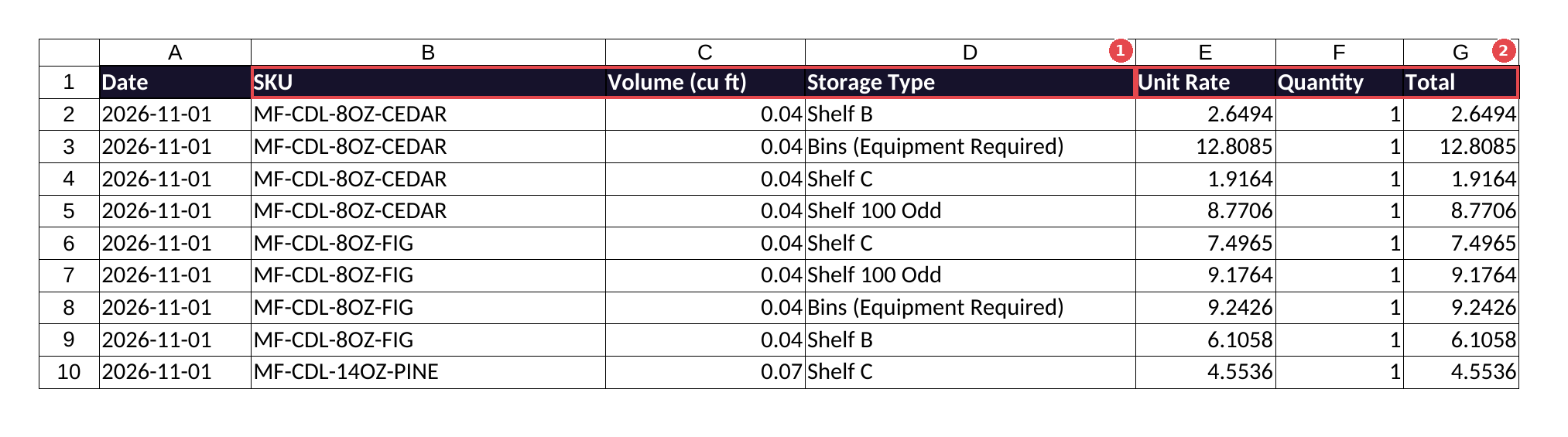
Example: you hold 100 units of a SKU. On the same day, 20 units ship out and another 20 are received. You're charged for 120 units of space that day, because that's the most you held at any point.
Inbound Arrivals
Appears when inbound POs arrived during the month, with one row per PO. Downstack/Restack? # Pallets in Column D (1) counts pallets taller than 63" that were broken down and re-stacked to fit. Compliance in Column G (2) shows each PO's compliance status, and Compliance Notes in Column H (3) explains it. Fully compliant POs are charged at your rate card rate. Non-compliant POs are charged per the fee schedule in Inbound Receiving Information, Policies, and Compliance, and appear on the Potential Savings tab with tips for avoiding them.

Returns
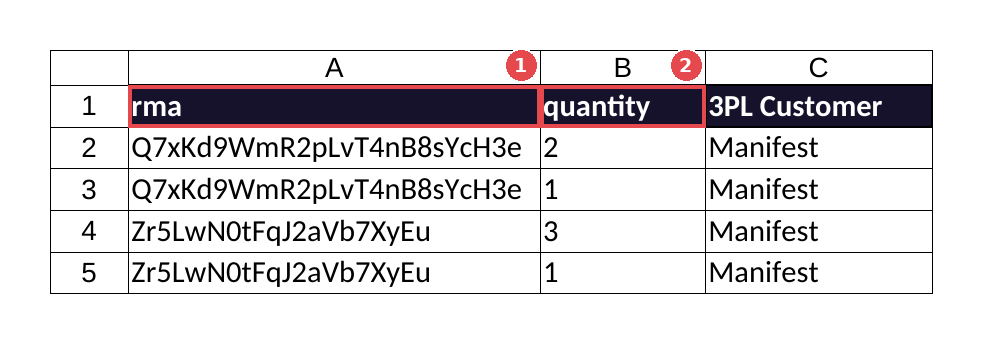
The returns processed during the month, exported from Manifest's returns platform, Two Boxes. Each row shows the rma (1) and the quantity returned (2). One RMA can take more than one row. On Invoice Totals, the return fee is charged once per RMA, and the returned unit fee is charged on every unit across those rows.
Credits
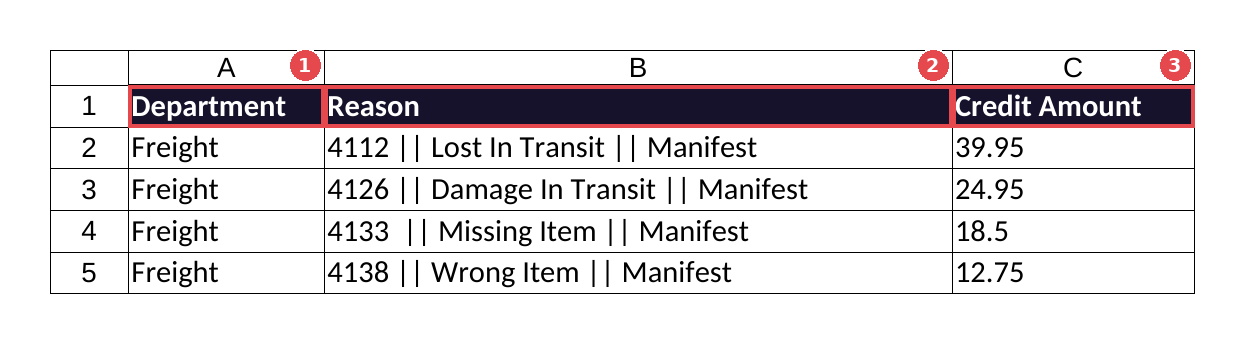
Appears when credits were approved during the month. Each row is one credit applied by Manifest. Department (1) shows what the credit is for, for example Freight. Reason (2) shows the order number and the reason, such as Lost In Transit, Damage In Transit, Missing Item or Wrong Item. Credit Amount (3) is the amount credited. Together, the credits make up the matching Credit line on Invoice Totals, for example Credit - Freight, which shows as a negative amount already taken off your total.
FAI (First Article Inspection)
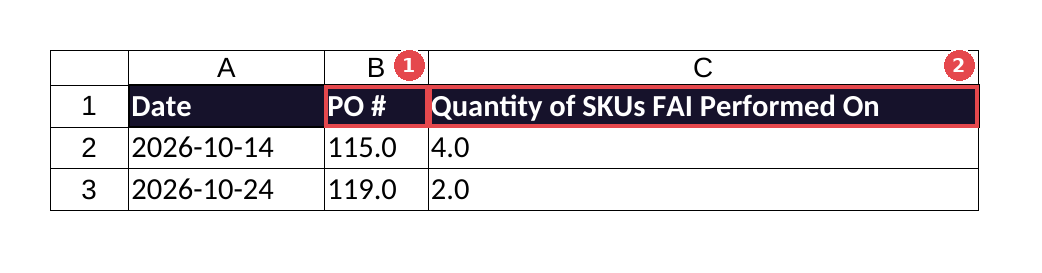
Appears when First Article Inspection was performed. Each row is one inspected PO: PO # (1) and Quantity of SKUs FAI Performed On (2). The FAI line on Invoice Totals charges your per-SKU FAI rate on the total number of SKUs inspected. For more information, see FAI (First Article Inspection).
Common questions
Why don't my freight charges match the orders I shipped this month? Freight is billed when the carrier invoices it, not when the order ships. Orders shipped near the end of the month usually show a blank Freight cell on Bucketed Costs and appear on next month's file, while packages shipped late last month can appear on this month's carrier tabs. That's why the Freight column on Bucketed Costs won't always add up to the Freight lines on Invoice Totals.
Why is there a freight charge for an order I shipped last month? The carrier billed that package this month. Check the Ship Date on the carrier tab; it will be from the previous month, and the order won't appear on this month's Bucketed Costs.
Why does one UPS package take several rows? UPS lists every charge on its own row: the base shipping charge, surcharges, and any corrections. Add the Amount Billed rows for that tracking number to get the package total.
What is a Shipping Charge Correction on the UPS tab? UPS audited the package after pickup, usually re-weighing or re-measuring it, and billed the difference. The correction row shows the adjusted billed weight and the extra amount. See Your Manifest Rate Card for how accessorial charges are assessed.
Who do I contact with a question about a charge? Reply to your invoice email or contact your Account Manager, and mention the tab and row you're asking about.