How to Facilitate Freight Pickup in RetailReady
Last updated: September 17, 2026
RetailReady - Select Shipping Method = Freight
Click Orders on the left rail
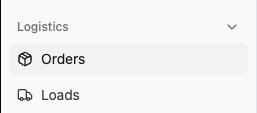
Search for/find the order in question and click into it
Click the "..." in the upper right corner
Select Actions > Enter Transportation Information
Select method = Freight
Click Save
With Your Freight Forwarder
Book freight as you normally to produce the BOL and freight and pickup information
RetailReady - Create Load and Enter Transportation Information
Once you've booked freight, you're ready to create a Load and Enter Transportation Information to associate that freight load with the order(s) in question!
Click Loads on the left hand navigation rail
Click + Single Entry
Enter in Load Name (Shopify Order ID, Ref ID, or Load ID all work!) and Pickup Date
Search for and select the order number(s) associated with this single freight pickup
Click Save
Re-open the load you just created
Click the Orders tab
Click Transportation Information
Enter all information:
Bill of Lading Number
Carrier Pro Number (If not provided, re-enter BOL #)
Carrier Name (e.g. SECO, SAIA)
Carrier Alpha Code (SCAC)
Carrier Trans Method Code (most often “M” for Motor)
Current Scheduled Delivery Date
Click Save
RetailReady - Add BOL
Click Orders on the left rail
Open each order in question, one by one and:
Add the BOL file to the Attachments section for all orders on this freight pickup