Shipping to Amazon FBA Through RetailReady
Last updated: November 6, 2026
RetailReady connects directly to your Amazon Seller Central account, so FBA shipments don't need EDI or a retailer routing guide. You create each FBA inbound plan in RetailReady, Amazon tells us where the cartons go, and Manifest packs and labels them with Amazon's own labels.
This guide covers the one-time setup and how to create each FBA shipment. You'll need your RetailReady login first (see Your RetailReady Account: First Login and New Brand Checklist).
Who does what
You | Manifest |
|---|---|
Connect Seller Central to RetailReady (once) | Receive and store your inventory |
Set prep and labeling details in Seller Central (once per SKU) | Pack each shipment to Amazon's plan |
Link your SKUs to Amazon SKUs in the Item Master | Print and apply Amazon's carton labels |
Create each inbound plan and choose placement and transportation | Hand the shipment to the carrier |
Only brand users can create FBA orders in RetailReady, so Manifest can't create inbound plans for you.
One-time setup
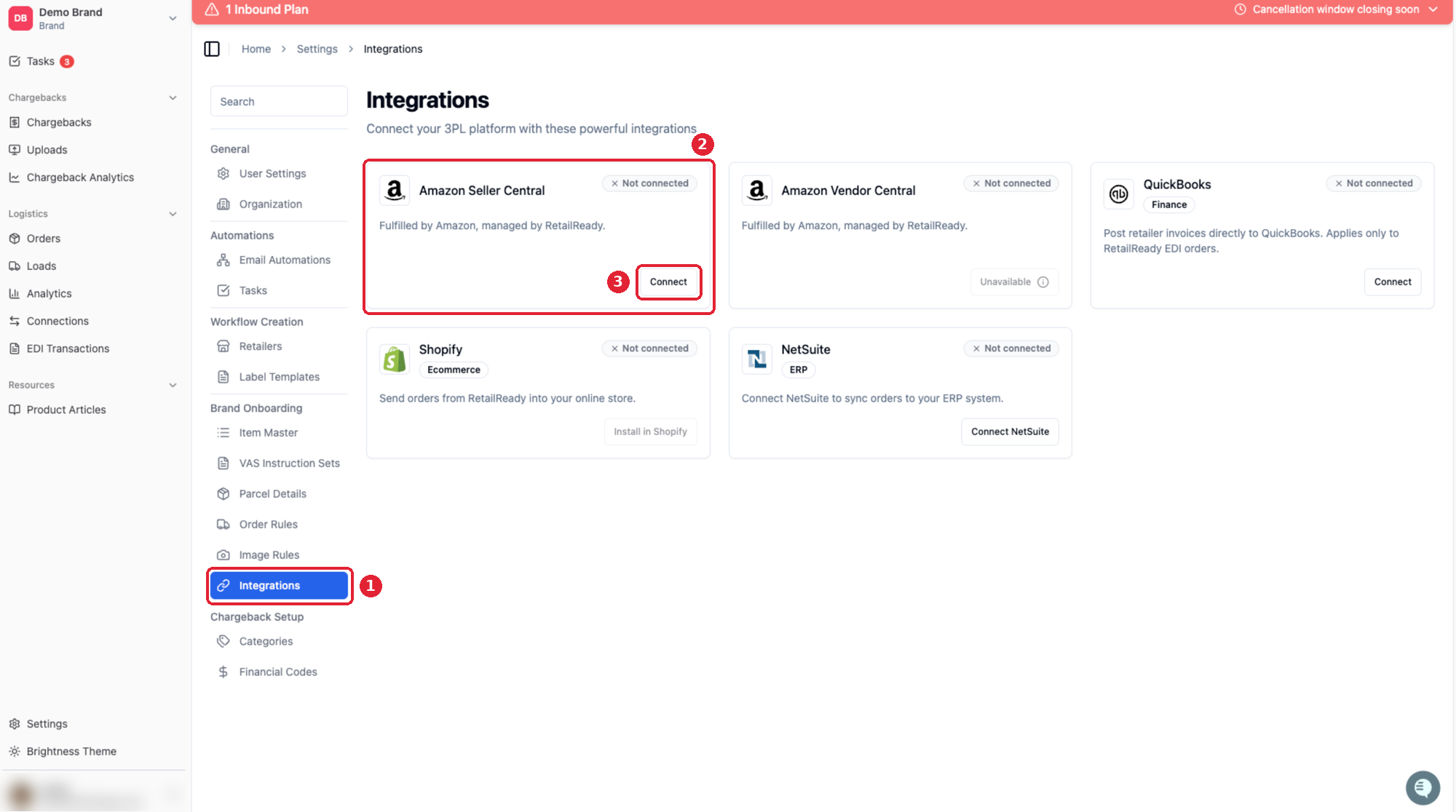
Step 1: Connect Seller Central
In RetailReady, click Settings in the bottom left, then Integrations.
Click Connect on the Amazon Seller Central tile.
Log in to Seller Central in the window that opens and approve the connection.
Step 2: Set prep and labeling details in Seller Central
Amazon needs prep details for every SKU before it can be shipped to FBA. RetailReady won't let you add a SKU to an inbound plan until they're set.
In Seller Central, go to Inventory → FBA → Shipments, then Send to Amazon.
Find any SKU marked Prep and labeling details needed and complete it.
RetailReady picks up the details automatically. You only do this once per SKU.
If Amazon says a SKU needs FNSKU labels or other unit prep, tell your Manifest Implementation Manager. We apply unit labels as a prep service (see Requirements for B2B/FBA Orders With Unit-Level Vendor Compliance).
Step 3: Link your SKUs to Amazon SKUs
In the RetailReady Item Master, every SKU you ship to FBA needs:
Its Amazon SKU selected, so RetailReady knows which Amazon listing it is.
Case pack quantity, case barcode, case dimensions and case weight. These are required for FBA.
See Loading Your Item Master and Validating Carton Dimensions for how to add items. To link many SKUs at once, use the three dots in the Item Master → Update Amazon SKU.
Each Amazon SKU can only be linked to one of your SKUs. If two of your SKUs point to the same Amazon SKU, both are left out of inbound plans.
Also needed: your GS1 prefix
Amazon prints its own box labels for FBA. RetailReady's onboarding form asks for a GS1 prefix; if you don't have one, we enter RetailReady's placeholder so your connection can still be set up. See Your GS1 Company Prefix: What It Is and How to Get One.
Creating an FBA shipment
Step 4: Create the inbound plan
Make sure the inventory you're sending is received at Manifest.
In RetailReady, click Orders, then Add order.
Select FBA as the retailer.
Name the inbound plan. The name shows in Seller Central, so use something your team will recognize.
Select Manifest as your 3PL, then choose a contact and enter a phone number.
Add each SKU and its quantity. If the SKU tracks lot or expiration date, fill those in too.
Click Create inbound plan.
Your first FBA shipment: stop here and let your Implementation Manager know. We'll review Amazon's placement options with you before anything is confirmed.
Step 5: Choose placement, delivery window and transportation
Placement option: Amazon offers one or more ways to split the shipment, each with a number of shipments, the Amazon fulfillment centers they go to, and any placement fee. Click an option to see the details, choose one and click Confirm.
Delivery window and freight class: set these for each shipment. Freight class is calculated for you, and Apply to All sets the same delivery window for every shipment. Click Confirm shipment configuration.
Transportation: for each shipment, click Select option and choose how it ships:
Amazon Partnered Carrier: Amazon books the carrier at its negotiated rates and sends the pickup date and bill of lading (BOL) straight to RetailReady.
Use Your Own Carrier: you book and pay the carrier yourself, and create the BOL.
Click Place order.
Amazon decides whether a shipment goes parcel or freight, based on box weights, box count and total weight. If you only see freight options, the shipment is too big for small parcel.
Cancelling
After you click Place order, you can cancel for 1 hour (freight) or 24 hours (parcel). Orders you can still cancel show in a red banner at the top of RetailReady. After that, the plan is locked and you'll need to open a case in Seller Central, which may cost extra.
After you place the order
We pack the shipment exactly as Amazon planned it, including which cartons go on which pallet. Cartons can't be moved between pallets on a freight shipment.
Amazon Partnered Carrier: the pickup date and BOL appear on the order in RetailReady (the BOL is under Attachments). To change a pickup date, open a case with Amazon. RetailReady and Manifest can't change it.
Your own carrier: book the pickup with your carrier, put the order's Amazon Reference ID on the BOL, and upload the BOL to the order's Attachments (see Uploading Attachments to a Retailer Order). Enter the transportation details on the order, and RetailReady sends the tracking to Amazon.
Troubleshooting
A SKU doesn't show up when I build the plan. RetailReady hides SKUs that aren't ready for FBA. Hover over the red ⓘ icon to see why. The usual reasons:
Missing case pack quantity, dimensions or weight in the Item Master.
The SKU is excluded from FBA in the Item Master.
Two of your SKUs are linked to the same Amazon SKU.
Prep details are missing in Seller Central ("Prep Category: Unknown").
I don't see Add order. Only brand users can create FBA orders. Check that you're logged in with your brand account.
I only see "Use Your Own Carrier" options with no prices. Amazon decides which carrier options to offer. If none are partnered, the shipment's size, contents or timing doesn't fit Amazon's partnered carrier program.
Questions
Contact your Manifest Implementation Manager. RetailReady's Amazon FBA Onboarding guide has screenshots of every step.