How to Facilitate Freight Pickup in RetailReady
Last updated: November 11, 2026
Every freight (LTL) PO you ship through RetailReady needs its transportation information and a load: a record of the pickup and the orders on the truck. RetailReady uses those details to send the ship notice (ASN) to the retailer, so missing details can lead to a chargeback.
This guide covers the routine for every freight PO:
Book the freight with your carrier.
Enter the transportation information on the order.
Wait for Manifest to stage the pallets.
Create the load.
Book the pickup at Manifest's dock in OpenDock.
Who does what
Step | Owner |
|---|---|
Set up the pallets-staged email (once, during onboarding) | You |
Book the freight | You (the brand) |
Enter the transportation information | You |
Pack and stage the pallets | Manifest |
Create the load | You |
Generate the BOL and attach it to the orders | Manifest |
Book the pickup in OpenDock | You |
Load the truck and upload the signed BOL | Manifest |
When to use this guide
A retailer PO ships by freight (pallets on a truck), not parcel.
Use it for every freight PO, including Amazon FBA freight shipments through RetailReady.
Before you start
The PO is in RetailReady.
You can sign in to RetailReady with your brand login.
You know who books the freight: your own carrier or forwarder, or the retailer's routing portal if the retailer routes it.
You've set up your pallets-staged email in RetailReady Email Automations, so you know when to create the load. It's a one-time task in your onboarding checklist.
1. Book the freight
Book the shipment with your carrier or freight forwarder, or request routing in the retailer's portal if the retailer routes its freight.
Keep these from the booking:
the BOL number (bill of lading: the shipment's paperwork number), if the carrier gives you one;
the PRO number (the carrier's tracking number);
the carrier's name and SCAC (its four-letter code);
the pickup date and expected delivery date.
2. Enter the transportation information on the order
In RetailReady, open Orders and open the order.
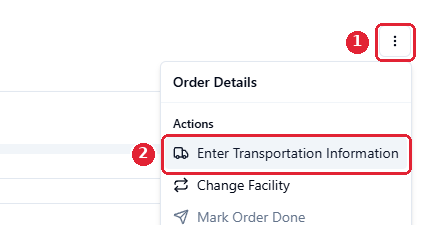
Click the three dots in the top right (1), then Enter Transportation Information (2).
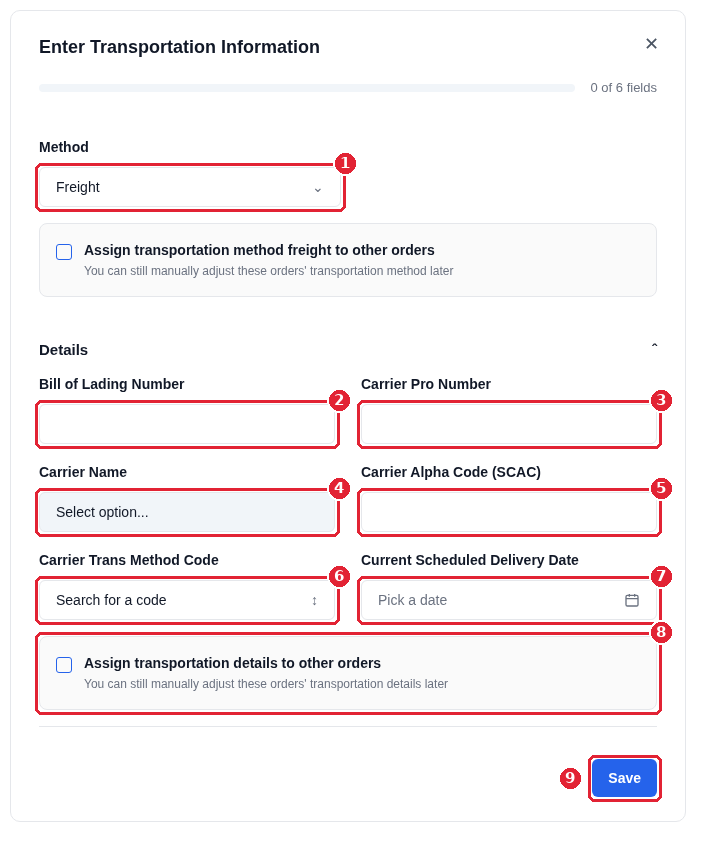
Fill in the form:
Field | What to enter |
|---|---|
Method (1) | Select Freight |
Bill of Lading Number (2) | The BOL number from your booking |
Carrier Pro Number (3) | The PRO number. If the carrier didn't give one, re-enter the BOL number |
Carrier Name (4) | Select your carrier from the list, for example SAIA or SEFL |
Carrier Alpha Code (SCAC) (5) | The carrier's four-letter SCAC |
Carrier Trans Method Code (6) | Search for and select M (Motor), the usual code for freight |
Current Scheduled Delivery Date (7) | Pick the expected delivery date. If the carrier or retailer doesn't give one, use your best estimate |
If other orders are going on the same truck, tick Assign transportation details to other orders (8) and select them, so you only enter the details once. Tick Assign transportation method freight to other orders as well if they aren't set to Freight yet.
Click Save (9). The progress bar at the top shows 6 of 6 fields when every detail is filled in.
3. Wait for Manifest to stage the pallets
Manifest packs the order onto pallets and stages them for pickup. You can't create the load until this is done: RetailReady only lets you add orders to a load once their pallets are staged.
You'll get an email from RetailReady when the pallets are staged. This is the pallets-staged email you set up during onboarding, under Settings > Email Automations in RetailReady. If you don't get it, check the automation exists for this retailer, then contact your Manifest onboarding team.
4. Create the load
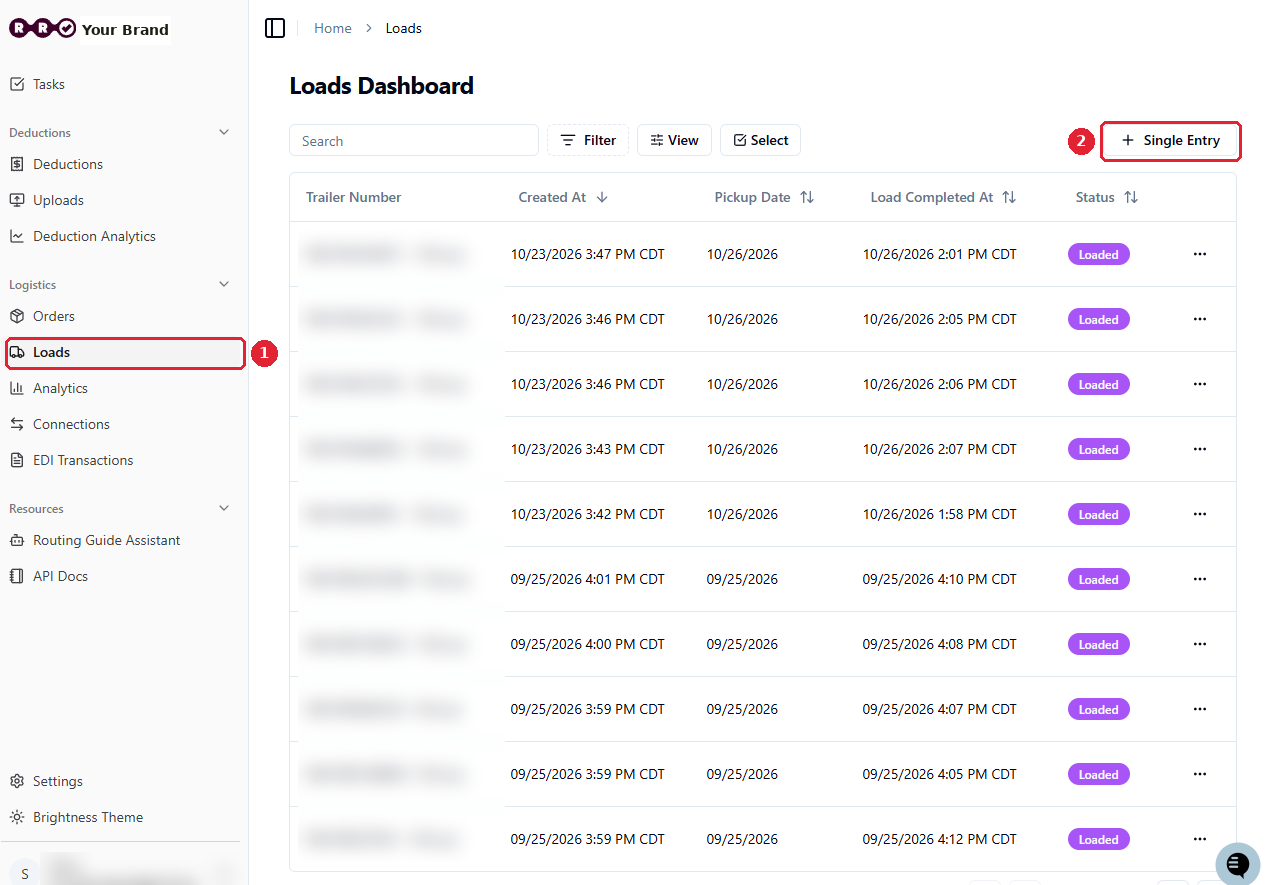
Click Loads in the left menu (1), then + Single Entry in the top right (2).
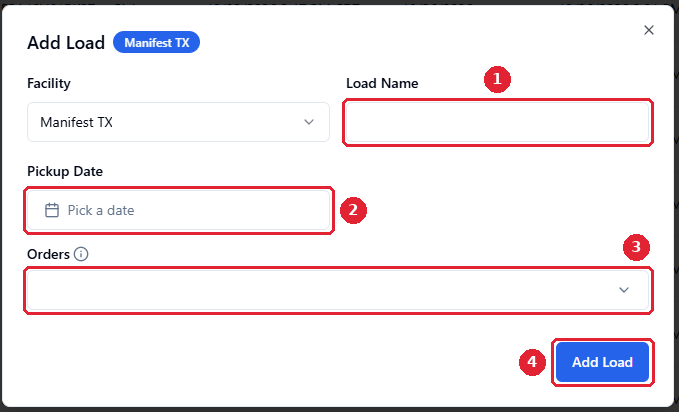
In Add Load, fill in:
Field | What to enter |
|---|---|
Facility | Select Manifest TX |
Load Name (1) | The order or load ID, for example |
Pickup Date (2) | The pickup date from your carrier booking. It's optional, but add it if you have it |
Orders (3) | Search for and tick every order going on this pickup. Only orders with staged pallets that aren't already on a load appear here |
Click Add Load (4). The load opens with the status Not Started.
Once the load exists, Manifest generates the BOL in RetailReady from your transportation details. It's added to each order's Attachments automatically, so you don't need to upload one.
5. Book the pickup at Manifest's dock
Book the carrier's pickup in OpenDock. Follow How to Schedule an Outbound Dock Appointment Through OpenDock.
Verify
Open the load and click the Orders tab (1).
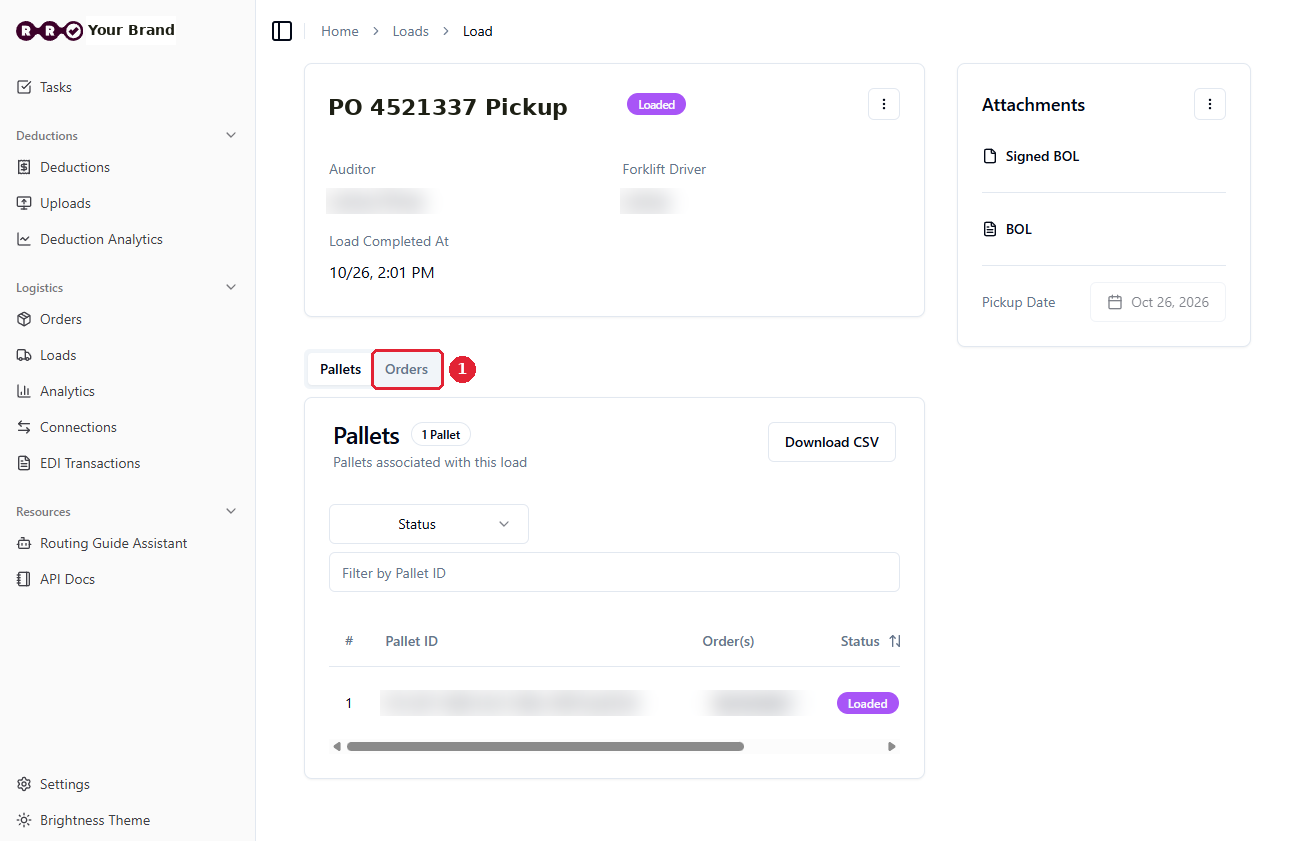
Check that:
every order on this pickup is listed, and the pickup date is right;
each order shows the BOL, PRO, carrier, SCAC and delivery date. If one is missing, click Transportation Information on that order and fill it in.
When the truck is loaded, Manifest uploads the signed BOL, the load status changes to Loaded and RetailReady sends the ASN to the retailer.
Things to avoid
Don't enter the transportation information before you've booked the freight. You need the PRO, carrier and dates, and it's easy to forget to come back for them.
Don't leave the PRO field empty. If there's no PRO number, re-enter the BOL number.
Don't try to create the load before the pallets are staged. Your orders won't appear in the Orders list yet; wait for the staged-pallets email.
Don't put orders that share a truck on separate loads. One pickup, one load.
Don't skip the transportation details. Without them, RetailReady can't send the ASN.