How to Edit the Shipping Method on an Order
Last updated: November 11, 2026
You can change the carrier and shipping service on a single order in your ShipHero portal, as long as the order hasn't been picked yet. This guide shows you how to open the order, set the shipping method and confirm the change saved.
There are three ways to set the shipping method, depending on how you want the order to ship:
A specific carrier and service, when the order must ship on exactly that service.
A rate shop method, when you want the lowest cost option from a group of carriers and services.
Your own prepaid label or BOL, when you, a retailer or a marketplace provides the label.
Who does what
You: change the shipping method on the order before it's picked, and attach any prepaid label or BOL.
Manifest: buys the label for the carrier and method on the order when it's processed, or waits for your label if the order is set to Generic.
Your Account Manager: helps with orders that are already being processed, updates many existing orders at once, and sets up custom rate shop methods.
When to use this guide
One order needs a faster or cheaper service than your store's default.
One order needs to ship on a different carrier.
An order will ship on a prepaid label or BOL instead of Manifest's carrier accounts.
When not to use this guide
Situation | Use instead |
|---|---|
You want to change the shipping method for every future order from your store | |
An order's shipping option didn't map to a ShipHero method | |
You need to change many orders that are already in ShipHero | |
You're deciding which service will get an order there by a certain date |
Before you start
Check that the order hasn't been picked yet. Once the warehouse starts processing it, a change may not take effect.
Know which carrier and service you want. Your Manifest Rate Card shows what each one costs.
If the order ships on a prepaid label or BOL, have the file ready to attach.
1. Open the order
Log in to your ShipHero portal at shipsfor.us, click Orders in the left-hand menu, then click Orders again in the menu that opens.
Search for the order by order number, first name or last name. If it doesn't appear, click Filters, change Created Date to a wider range and click Apply. The list shows only the last week by default.
Click the order number to open it.
If a yellow banner at the top of the order says the warehouse is currently processing it, changes at this stage aren't guaranteed. Contact your Account Manager instead of editing the order.
2. Set the carrier and method
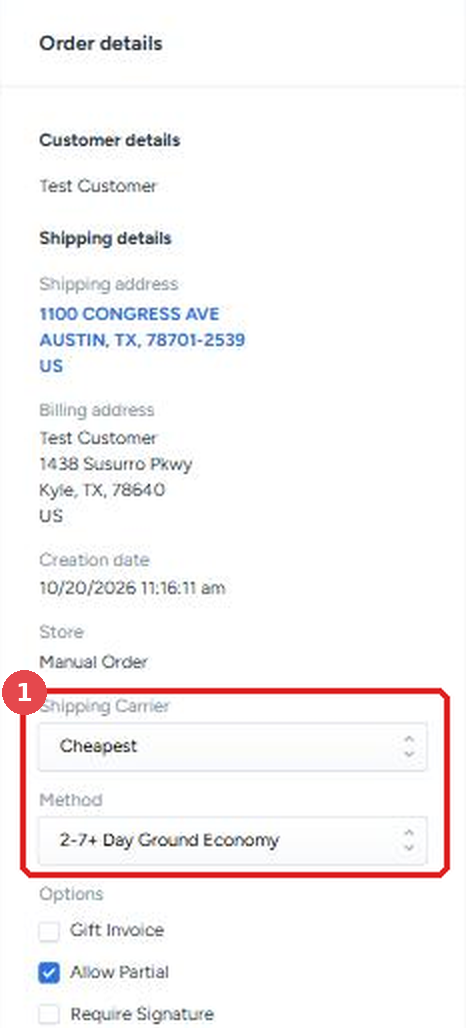
Find Shipping Carrier and Method (1) under Order details on the right side of the order.
Ship with a specific carrier and service
Use this when the order must ship on one exact service.
In Shipping Carrier, select the carrier, for example UPS. Method resets when the carrier changes.
In Method, select the service, for example UPS 2nd Day Air.
Rate shop across carriers and services
Use this when you want the lowest cost option from a group of carriers and services. A rate shop method is a pool of carriers and services; when the label is created, the cheapest one in the pool for that order's weight and destination is chosen, and you're billed for that carrier and service.
In Shipping Carrier, select Cheapest.
In Method, select one of Manifest's rate shop methods. The Rate Shop Methods page lists them and shows which carriers and services are in each one.
The Method list also shows ShipHero's built-in options, such as Next Day, 2 Days and 3 Days. Don't use those. They aren't set up with Manifest's carriers and won't ship the order as expected.
If you'd like a custom rate shop method, contact your Account Manager.
Ship on your prepaid label or BOL
Use this when the order ships on a prepaid label, prepaid BOL or prepaid freight that you, a retailer or a marketplace provides.
In Shipping Carrier, select Generic.
In Method, select genericlabel.
After you save, attach the prepaid label or BOL to the order. See How to Add Attachments to an Order.
An order set to Generic won't ship until the label is attached, because Manifest doesn't buy a label for it. For more on prepaid shipping, see Shipping Types at Manifest.
3. Save and check the change
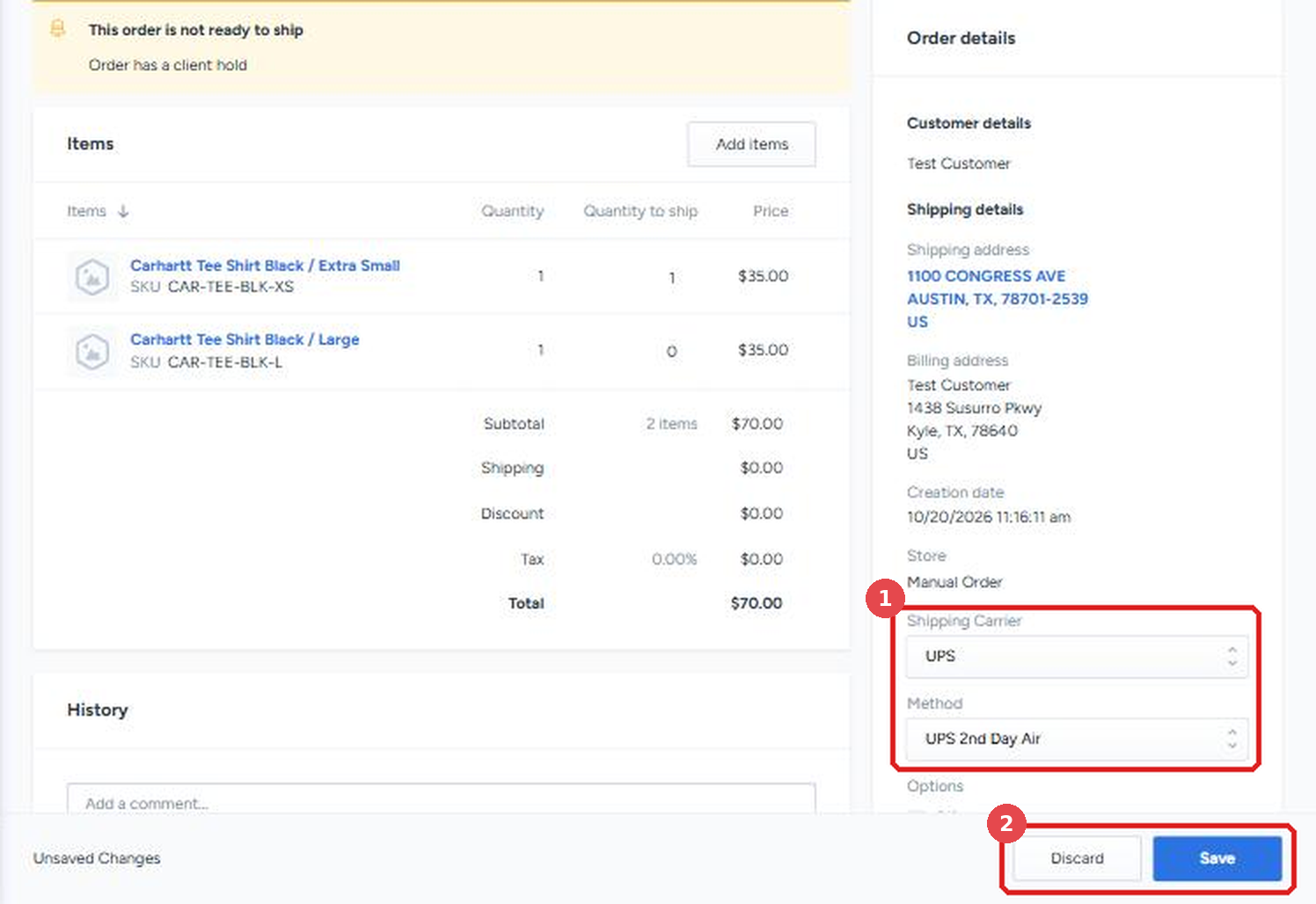
Check that Shipping Carrier and Method show what you selected (1).
Click Save in the Unsaved Changes bar at the bottom of the page (2). Click Discard instead to cancel.
Scroll to History. A new entry shows the carrier and method changing from the old values to the new ones (1).
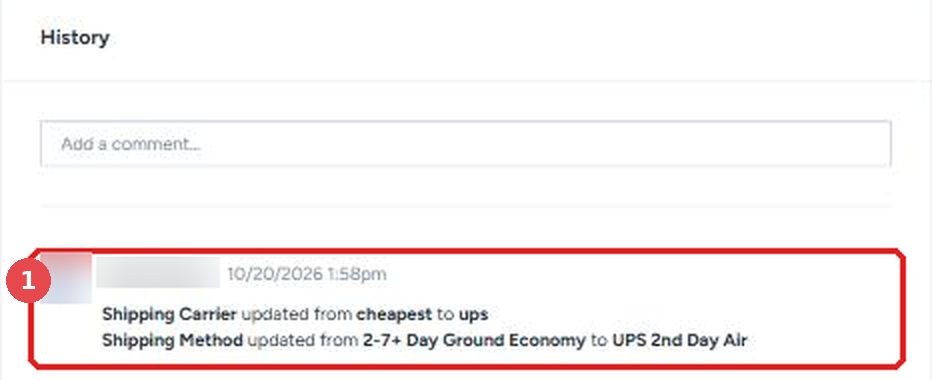
If there's no new entry in History, the change didn't save. Make the change again and click Save.
What you're billed
You're billed at your rate card price for the carrier and service that ships the package. For a rate shop method, that's the carrier and service chosen when the label is created.
Things to avoid
Don't edit an order the warehouse is already processing. The change may not take effect; contact your Account Manager instead.
Don't pick a Cheapest method that isn't one of Manifest's rate shop methods. ShipHero's built-in options, like Next Day or 2 Days, aren't set up with our carriers. Check the Rate Shop Methods page if you're not sure.
Don't leave a Generic order without its label. It won't ship until the prepaid label or BOL is attached.
Don't use a rate shop method when the order has to arrive by a certain date. Rate shopping picks the lowest cost option, which may be slower than you expect. See How to Deliver an Order by a Specific Date.
Don't assume a 2-Day service is guaranteed. FedEx and UPS currently guarantee only their overnight services and their 2-Day A.M. services, so standard 2-Day delivery is an estimate.
Don't expect a store-wide mapping change to update existing orders. Mapping changes apply only to orders imported after the change; contact your Account Manager to update orders already in ShipHero.