Shopify x ShipHero- Import Orders by Location Flag
Last updated: November 13, 2026
If your Shopify store has more than one location, ShipHero's Import Orders flag decides which orders come to us. It's a checkbox on each Shopify location in your ShipHero store settings: orders at a checked location import into ShipHero, and orders that sit entirely at unchecked locations stay out. By default, ShipHero imports every order from your Shopify store, including orders for your other locations. Nothing is held back until your Account Manager unchecks the locations Manifest doesn't fulfill from.
This guide covers what the flag does with each kind of order, how it's set for your account, and what to do when an order you expected doesn't arrive.
Why we use it
Your ShipHero order list stays clean. Orders for your retail store, another 3PL or a dropship partner never appear next to the orders we ship.
Automation rules run on the right orders. Rules only run once, when an order first imports. If an order starts at another location and moves to Manifest later, the flag holds it back until then, so it imports with the right location and the rules run on it.
Who does what
You: keep Shopify's location assignments and routing rules accurate, and tell your Account Manager when you add or remove a location.
Your Account Manager: sets which locations are checked, and helps when an order doesn't import. Only your Account Manager can change Import Orders; you can see it but not change it.
Manifest: ships the orders that import.
When to use this guide
You fulfill from more than one Shopify location, or plan to.
Orders for another location are showing up in your ShipHero portal.
An order you expected us to ship never arrived in ShipHero.
When not to use this guide
Situation | Use instead |
|---|---|
You want the full picture of how Shopify assigns orders and how split orders are handled | |
You want to control which locations get inventory updates | |
You haven't created the Manifest Texas location yet |
Before you start
Your Manifest Texas location exists in Shopify, with Fulfill online orders from this location turned on.
You know which of your Shopify locations Manifest fulfills from and which it doesn't.
1. Know what the flag does
Once your Account Manager has set the flag, it looks at which location each item on an order is assigned to in Shopify:
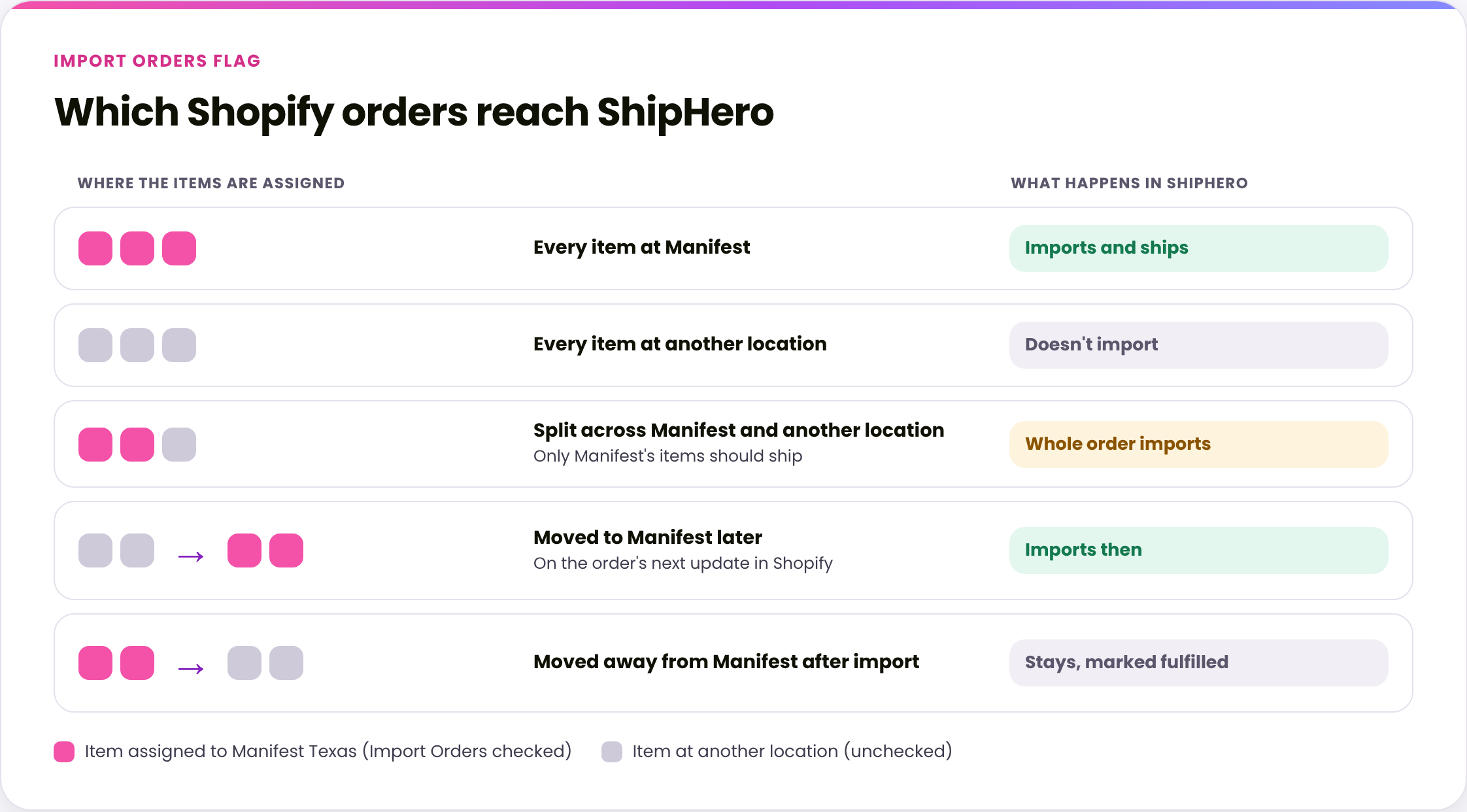
Where the order's items are assigned | What happens in ShipHero |
|---|---|
Every item at a checked location (Manifest Texas) | The order imports and we ship it |
Every item at unchecked locations | The order doesn't import |
Some items at Manifest Texas, some elsewhere | The whole order imports. Only the items assigned to Manifest Texas should ship. See Part 3 of Order Routing Between Shopify and ShipHero for how the other items are handled |
Started at an unchecked location, then every item moved to Manifest Texas | The order imports the next time it updates in Shopify |
Imported, then every item moved away from Manifest Texas | The order stays in ShipHero and is marked fulfilled, so we don't ship it |
Two things the flag doesn't do:
It isn't retroactive. Orders that were skipped while a location was unchecked don't import when you check it later, unless the order is updated in Shopify.
It doesn't control inventory. Which locations get stock updates is a separate setting, Push Inventory From. See Shopify Locations.
2. Set which locations import
The Import Orders checkbox is on every Shopify store connection, so there's nothing to turn on. Until it's set, ShipHero imports every order from your store, so if you sell from other locations, ask for it to be set before you go live. Your Account Manager sets it for you:
Contact your Account Manager and tell them which of your Shopify locations Manifest fulfills from. See How to Contact Manifest Account Management.
Your Account Manager checks Import Orders for Manifest Texas and unchecks every other location.
3. Check which locations import
Log in to your ShipHero portal at shipsfor.us.
Go to My Account > Stores.
Click Settings next to your Shopify store.
Open the Locations tab and look at the Import Orders column (1).
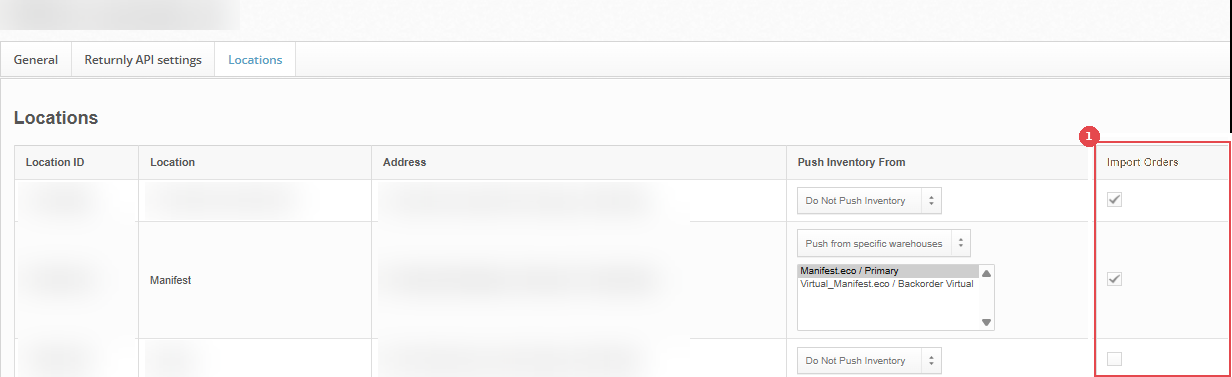
Manifest Texas should be checked. Locations Manifest doesn't fulfill from should be unchecked. If anything looks wrong, ask your Account Manager to change it.
4. When an order doesn't arrive
In Shopify, open the order and check the location shown on each Unfulfilled section.
If the items are at another location, and Manifest should ship them, click the location name and choose Change location to move them to Manifest Texas. The order imports on that update.
If the items are already at Manifest Texas, check that Import Orders is checked for Manifest Texas. If it isn't, ask your Account Manager to check it.
If it is, make a small edit to the order in Shopify, such as adding a tag or a note. That sends ShipHero a fresh update.
If the order still hasn't arrived, contact your Account Manager with the order number.
Verify
Orders assigned to Manifest Texas show up in your ShipHero portal.
Orders assigned only to your other locations don't.
After moving an order to Manifest Texas in Shopify, it appears in your ShipHero portal.
Things to avoid
Don't assume checking a location brings in old orders. Only orders updated after the change import.
Don't move items away from Manifest Texas once we're working on an order. ShipHero only picks up location changes made before picking and packing start. Contact your Account Manager instead.
Don't rely on the flag to split orders. A split order imports in full. Make sure your routing and automation rules are set up for split orders. See Order Routing Between Shopify and ShipHero.
Don't add a location without telling your Account Manager. It needs the right Import Orders and Push Inventory From settings.
Don't confuse Import Orders with Push Inventory From. One controls which orders come to us; the other controls where stock updates go.